

.svg)

.svg)
.svg)
.svg)
.svg)
%201%20(2).png)

.svg)
.svg)


.svg)
.svg)

Learn the proven process for connecting your internal data systems to Mapistry's Environmental Data Platform through API automation
Environmental compliance teams at manufacturing facilities face a common challenge: valuable operational data sits locked in various systems—SAP, PI historians, flow meters, weather stations—while compliance reporting still relies on manual data entry or spreadsheet uploads.
The solution? API automation that connects your existing data systems directly to your compliance platform. But getting there requires a clear data mapping process.
Julia Ballou from Mapistry recently walked through this exact process in a webinar. Whether you're just starting to explore automation or you're ready to connect with your IT team, this guide breaks down everything you need to know.
Watch the full webinar
Download the step-by-step handout
Julia created a practical handout that summarizes the entire data mapping process, complete with templates you can use when working with your IT team.
Why data mapping matters for compliance automation
Before your IT team can write a single line of code to automate data transfer, you need to answer one fundamental question: What data do we actually need, and where does it come from?
This is where data mapping comes in. It's the process of identifying every input your compliance logs require, determining which inputs can be automated, and matching your internal system IDs with the corresponding fields in Mapistry.
As Julia explained in the webinar: "Identifying each input and where they come from is the most important first step of every log setup and data mapping process."
The four-step data mapping process
Step 1: Identify and categorize your inputs
Start with your existing compliance spreadsheets. For each input column, you need to determine where that data originates.
Julia recommends adding a column next to each input to note its source, then consolidating everything into a single table with these categories:
- Manual: Someone physically reads a meter or records information
- Upload: Data comes from another spreadsheet or system periodically
- API: Data already exists in an internal system and can connect directly
For API-eligible inputs, you'll also need to identify:
- Which system the data lives in (SAP, PI, AVEVA, etc.)
- The unique ID or tag for that data point in your system
- Required units and collection frequency
Example from the webinar: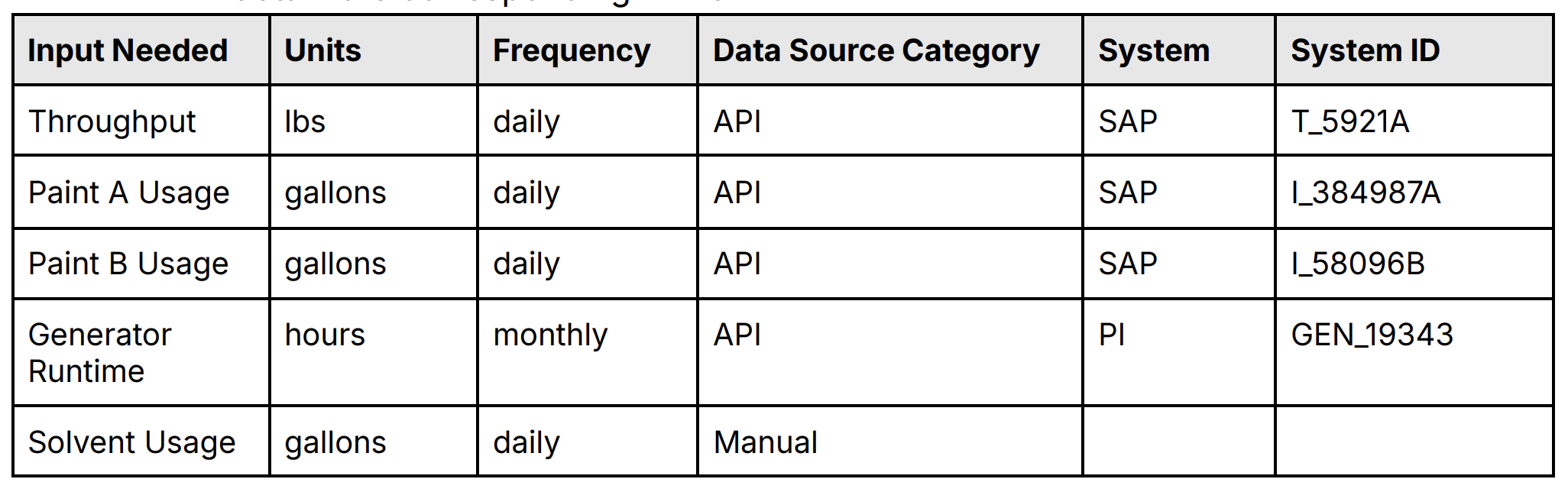 This table becomes your roadmap. You can see at a glance which data can be automated, which systems you'll need to connect, and what still requires manual entry.
Step 2: Start the IT conversation
Armed with your data mapping table, you're ready to loop in your IT team. Julia has found that having this information prepared upfront significantly accelerates the process.
Here's the conversation starter Julia recommends:
"I have identified environmental data that I want to automate and send to Mapistry via API. I have a list of the inputs I need and which systems they come from. I want to know what corresponding ID this item has in our system and make sure the data is available and in the format I need it. Do you have time to help me with this?"
When you meet with IT, review your data mapping table together. Walk through each system to:
- Confirm the system IDs you've identified
- Verify the data is in the units you expect
- Ensure data can be sent at your required frequency
- Discuss timing (IT teams are often busy—when works best?)
- Determine if data needs aggregation before sending (max vs. total, for example)
This collaborative session helps fill in any gaps in your system ID column and surfaces potential technical blockers early.
Step 3: Connect with Mapistry
Once you've completed your data mapping table and confirmed availability with IT, it's time to bring Mapistry into the conversation:
- Let your Mapistry Customer Success Manager know you want to automate data for specific logs
- Introduce your IT contact to Mapistry
- Mapistry will provide API credentials for your IT team
- Mapistry will set up the corresponding logs and fields in their system
At this stage, Mapistry creates the "receiving end" of the data connection—the logs and fields where your data will flow.
Step 4: Complete the API connection
Now your IT team has everything they need:
- Your internal system IDs (from your data mapping table)
- Mapistry's log and field IDs (provided by Mapistry)
- API credentials to establish the connection
Your IT team will write a script that pulls data from your internal systems and posts it to Mapistry at the required frequency.
Julia recommends creating one comprehensive table that combines all this information:
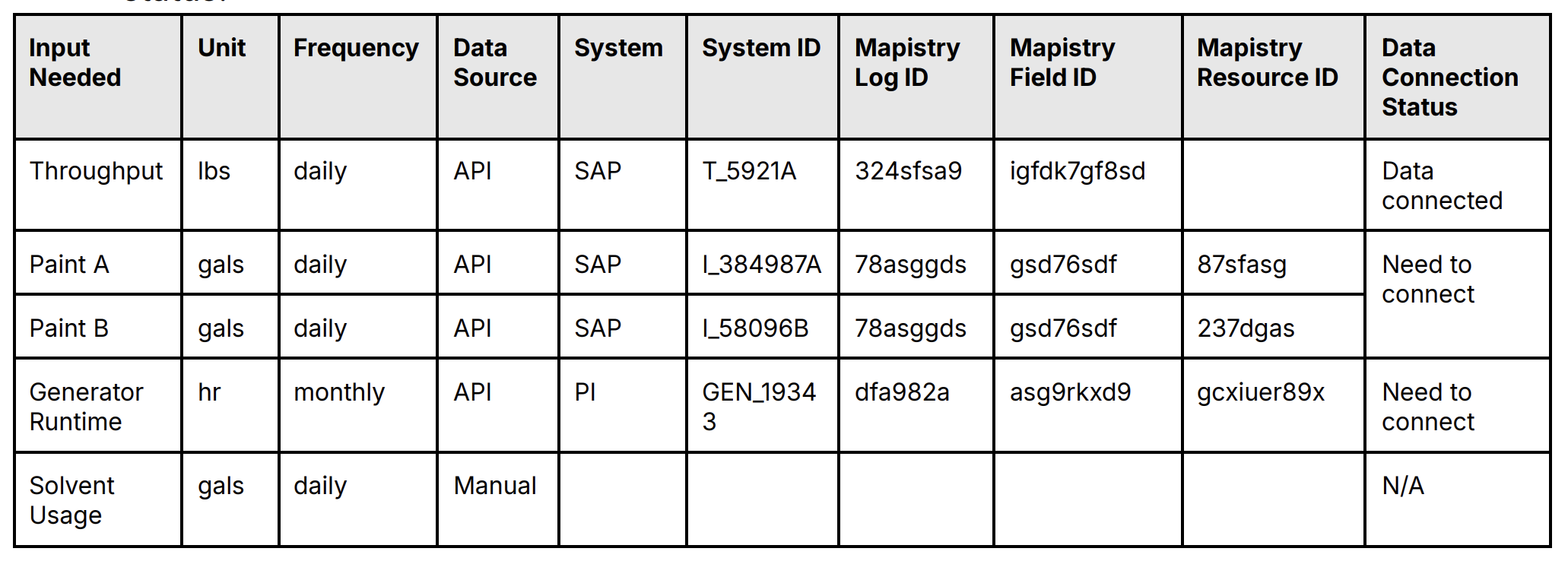
The status column helps you track progress and know exactly what to follow up on with IT.
Final checks before you're done
Once the API connection is established and data starts flowing, don't assume everything is perfect. Julia recommends verifying:
- Does IT have both IDs? Confirm they have both your internal system ID and the corresponding Mapistry ID for each input
- Is data flowing? Check that you're actually seeing data populate in Mapistry logs
- Is historic data loaded? If you need past data (for 12-month rolling totals, for example), confirm IT has sent historical records
- Is the data accurate? Review the actual values—Julia shared an example where negative numbers appeared unexpectedly, requiring a conversation with IT about data handling
Common blockers and how to overcome them
"Our IT team is too busy"
This is one of the most common challenges. Julia's advice: be persistent and make it as easy as possible for IT by doing the upfront work. When you present a complete data mapping table with clear, specific requirements, you reduce the burden on IT and make it easier for them to prioritize your request.
"We can't find the system ID"
Sometimes data exists but the ID isn't easily accessible. Work with IT to dig deeper into your systems. Julia recommends: "Keep asking for the source. If someone says they run a report, ask 'where do you go to run that report? Can you show me the system?'"
"We're not sure if our system can connect via API"
Julia suggests Googling "[System name] + API" to see if the vendor provides API documentation. If they do, connection is typically much easier. Common systems that work well with API connections include SAP, PI, AVEVA, and various IoT devices.
"Not all our data can be automated"
That's okay. As Renald mentioned in the webinar, you can start with partial automation. Connect what you can now, and continue with manual entry for the rest. You can always add more automated connections later as systems are upgraded or new data historians are installed.
What makes data automation worth it?
The webinar focused on the "how," but it's worth remembering the "why." API automation of environmental compliance data:
- Eliminates manual data entry errors that can lead to compliance violations
- Saves hours each month that environmental teams spend gathering and entering data
- Enables real-time monitoring rather than retroactive compliance checking
- Provides complete data history for trend analysis and continuous improvement
- Frees up your team to focus on strategic environmental initiatives instead of data wrangling
For facilities tracking air emissions, water discharge, waste generation, or hazardous materials, automation transforms compliance from a reactive, administrative burden into a proactive, strategic function.
Key terms you'll need to know
As you work through this process, these terms will come up frequently:
API (Application Programming Interface): The "bridge" that lets two software systems communicate. Mapistry's API lets your internal systems send environmental data directly into Mapistry without manual entry.
Data Historian: Systems like AVEVA or PI that store time-series process data such as throughput, temperature, pressure, or flow rates.
IoT Devices: Sensors that automatically collect and transmit data—weather stations, pH probes, flow meters, etc.
Scripts: Custom code your IT team writes to automate tasks like pulling data from your systems and sending it to Mapistry.
POST: The API command that sends new data to Mapistry and creates new log entries.
GET: The API command that retrieves data that's already in Mapistry (useful for IT when setting up connections).
Your next steps
If you're ready to start automating your environmental compliance data:
- Download the handout (embedded above) and review the templates
- Watch the webinar to see Julia walk through a complete example
- Start with one log or one data source rather than trying to automate everything at once
- Create your data mapping table following the templates in the handout
- Schedule time with IT to review the data sources and confirm system IDs
- Reach out to your Mapistry CSM when you're ready to make the connection
Remember Julia's advice: "Persistence can be key to getting these implementations set up. They can take some time. So having you be aware of the information needed and the steps of the process can be really helpful in moving things along."
Additional resources
- Mapistry's API Documentation
- API Overview and Examples
- Complete webinar recording (embedded above)
- Step-by-step handout (embedded above)
Questions about data mapping or API automation for your environmental compliance program? Contact Mapistry or speak with your Customer Success Manager.