
The Users page is where you see and manage access to a site in Mapistry.
To get there:
- From the left navigation bar, click Sites.
- Select the site you want to manage.
- In the site menu, click Users ("Manage site access").
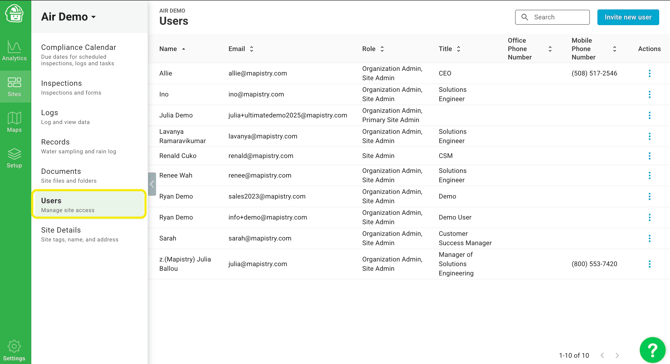
What you can do from the Users dashboard
The dashboard lists every user attached to that site, along with their email, role, title, and office and mobile phone numbers. From here you can:
- Search for a specific user using the search bar at the top right.
- Sort the list by clicking the arrows next to any column header.
- Invite a new user to the site using the Invite new user button.
- Manage an existing user by clicking the three-dot menu in the Actions column at the end of their row.
If your site has more than 10 users, use the page arrows at the bottom right to move through the list.
For more detail, see how to add and remove users from a site and how to change site roles.
End of Article
Support
If you have any questions or need further assistance, please e-mail help@mapistry.com.