
Inviting Users to a Site
After clicking into the Users section, you can invite people to your site by clicking Invite new user in the top right corner.
💡 Note: If your organization uses Single Sign-On (SSO) and you are adding a new user, please contact help@mapistry.com
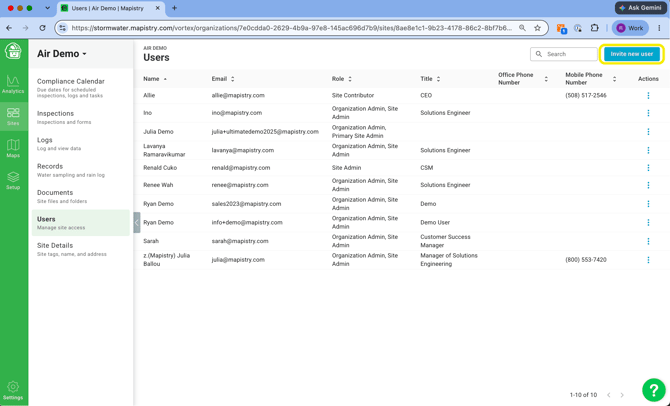
In the Invite new user window, enter the person's email — either by selecting an existing Mapistry user from the dropdown or typing in a new email address. You don't need to enter their name; the invited user will set their own name and job title when they sign up.
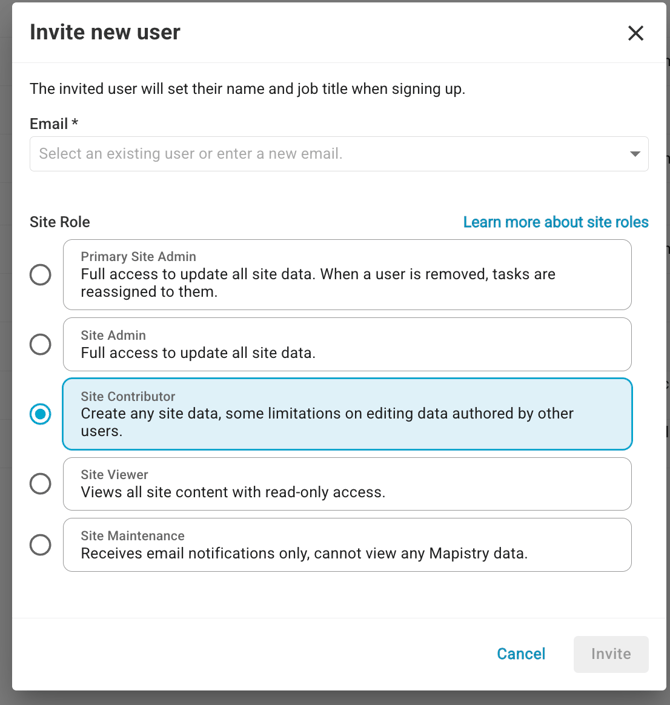
When inviting a new or existing user to the site, their Site Role determines the extent of what can be done in Mapistry, and a role must be selected before sending an invite. If you would like the user to have access to Analytics, please reach out to help@mapistry.com.
If your site role is Primary Site Admin or Site Admin, you will need to enter the person's email address and name and select the type of permission they will need. Site Contributors, Site Viewers, and Site Maintenance users need to contact a Site Admin to add a new user.
The permission choices and the kind of actions users can partake in are as follows:
- Site Admin: Has the ability to update and make changes to forms, maps, documents, and users for the sites that they are added to
- Primary Site Admin: Can perform the same duties as Site Admin; each project has one Primary Site Admin
- Site Contributor: Can see the site on the software, add data, and complete inspections. They cannot add new users or edit the permissions of existing users. Can fully edit tasks they create and can only edit notes and add/remove attachments for tasks assigned to but not created by them. Cannot make any edits to tasks not assigned to or created by them. Can only delete tasks they created.
💡Note: a task may be assigned to multiple users; if so, any assignee, an admin, or the author could complete the task.
- Site Viewer: Can view the site but cannot make changes or edits, or complete inspections
- Site Maintenance: Will be able to receive e-mails on corrective actions that are assigned to them. They will not be able to log in to close out tasks.
After selecting an email and Site Role, click Invite, and an email will be sent to that address with a link directing them to create (or accept access to) their Mapistry account.
Managing existing users
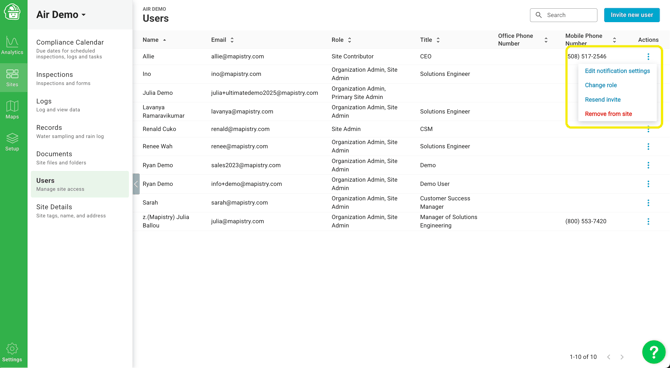
Once a user appears on the Users list, click the ⋮ (three dots) in the Actions column next to their name to:
- Edit notification settings
- Change role
- Resend invite — useful if they haven't accepted their invite yet
- Remove from site
End of Article
Support
If you have any questions or need further assistance, please e-mail help@mapistry.com.