
Form Exceptions let you record that a scheduled inspection wasn't completed for a valid reason, like a site closure, a holiday, or unsafe weather. Instead of leaving the inspection as missed or filling out a form that doesn't apply, you can log the date, who recorded it, and why.
Common examples:
- Your inspection is due Monday through Saturday, but the site is only open some Saturdays.
- A daily inspection couldn't be done because severe weather made it unsafe to go outside.
💡 Any user who can edit an inspection submission can record or remove an exception for it.
Recording an Exception
Step 1: Open the inspection. From your Inspections page, click the inspection you would have completed for that date.
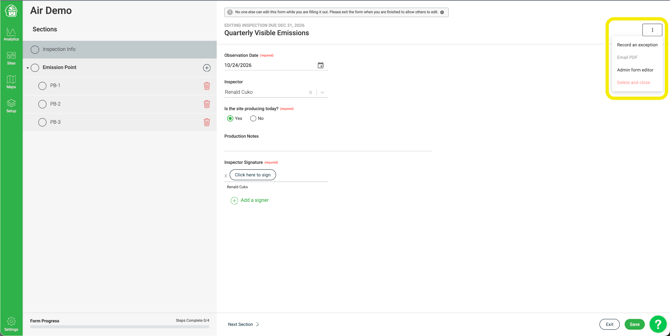
Step 2: Select "Record an exception." Click the three dots in the top right corner of the form, then select Record an exception.
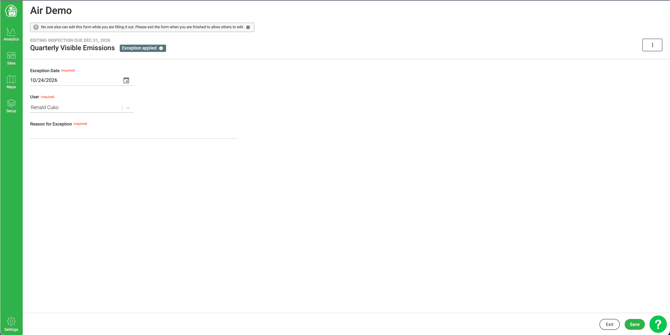
Step 3: Fill in the exception details. The form's regular sections are replaced with three fields, all required:
- Exception Date: the date the inspection wasn't completed.
- User: fills in automatically with your name.
- Reason for Exception: a short explanation, such as "Site did not operate" or "Closed for holiday."
An Exception applied tag appears next to the form name so it's clear this inspection is being skipped.
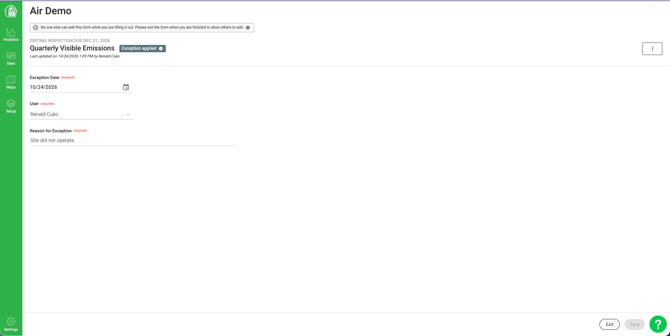
Step 4: Click Save. The exception is now recorded. The header shows when it was last updated and by whom.
Removing an Exception
If an exception was recorded by mistake, you can remove it and fill out the inspection as usual.
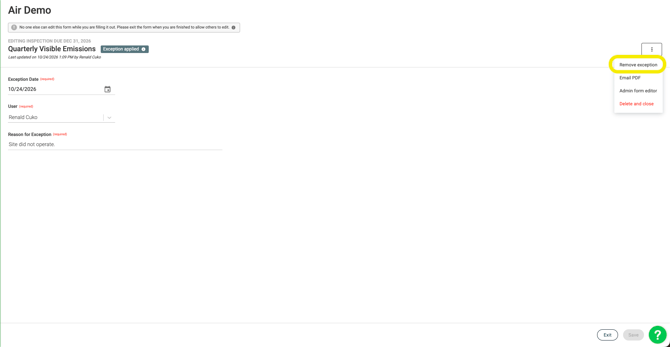
Step 1: Open the inspection, click the three dots in the top right corner, and select Remove exception.
Step 2: The regular form sections come back. Complete the inspection as you normally would and click Save.
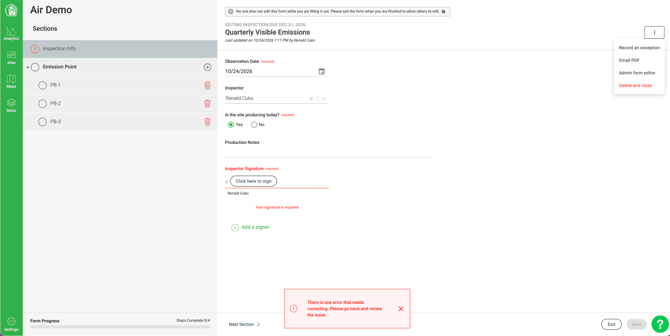
💡 Removing an exception brings back the submission exactly as it was, rather than a blank form. This means any data entered before the exception was recorded is kept. It also means that even if nothing was entered, the inspection will now show as started, with some fields (such as the date and site details) pre-filled from when the exception was recorded.
If you'd rather start completely fresh, click the three dots and select Delete and close, then confirm with Permanently delete. A new, blank submission will be available for that date.
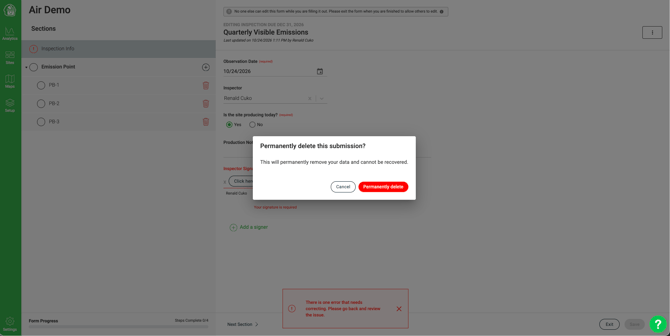
⚠️ Deleting a submission permanently removes all of its data and can't be undone. Only do this if you're sure nothing in the submission needs to be kept.
Where Exceptions Show Up
Inspection calendars and the Compliance Calendar
Inspections with an exception show a blue checkmark instead of the green completed checkmark. Hover over it to see how many exceptions were recorded.
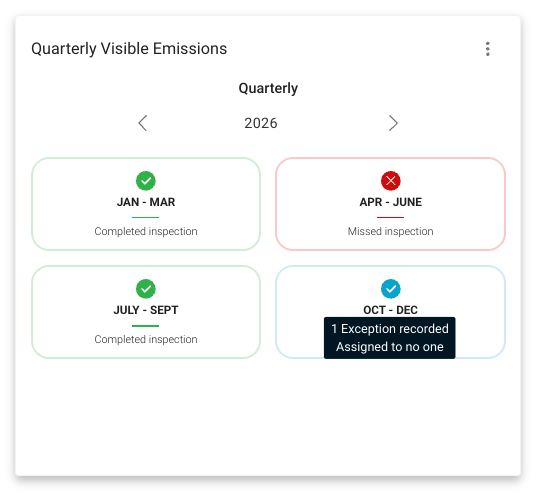
💡 Blue means an exception was recorded. Upcoming inspections that haven't been started show as an empty circle.
Mobile app
The Mapistry mobile app shows exceptions on your calendars the same way, with a blue checkmark. Make sure your app is updated to the latest version to see them.
Notifications
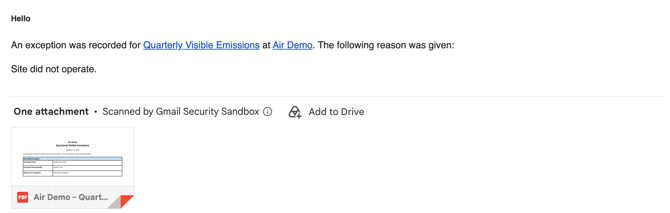
If you receive completed inspection emails for a form, you'll also receive an email when an exception is recorded for it. The subject line reads "An exception was recorded for [form name] on [date] for [site name]." Upcoming and overdue reminders aren't sent for inspections that have an exception.
PDFs
Printing or emailing the PDF of an inspection with an exception gives you a single page showing the inspection name, exception date, user, and reason.
Analytics
Exceptions are tracked separately from completed inspections, so they won't be counted as complete in your reports.
Things to Keep in Mind
- An exception is visible to every user on the site as soon as it's saved.
- Exceptions are recorded per inspection date. To skip several dates, record an exception on each one.
- If tasks were created on a submission before an exception was recorded, those tasks stay in place. Review them and close out any that no longer apply.
- Removing an exception restores the previous submission rather than starting a blank one (see Removing an Exception above).
End of Article
Support
If you have any questions or need further assistance, please e-mail help@mapistry.com