
The Form Builder allows you to create new forms and update/edit your existing forms directly.
💡 Organization Admins and Site Admins have the permissions to access and use the Form Builder. Site Admins can only edit forms that are used exclusively at sites they administer. If a form is used at other sites, they will receive an error message indicating they need a site-specific copy and should reach out to support. For more information about site roles, click here.
💡 Forms can only be edited if the underlying template is unique to your organization. If you are not able to edit a form yourself, please reach out to your Customer Success Manager or help@mapistry.com for assistance.
Accessing the Form Builder
There are two ways to access the Form Builder:
-
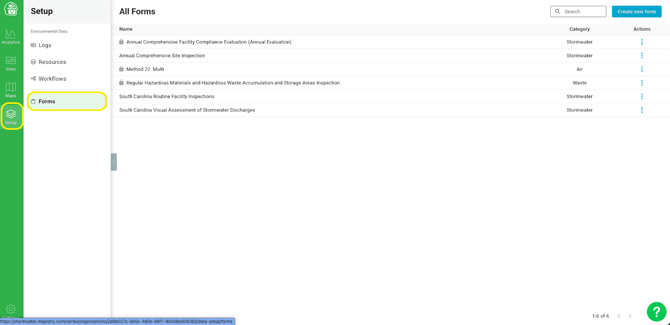
From the Setup page: Navigate to Setup → Forms in the left sidebar. This page lists all forms in your organization along with their category. Click the three-dot Actions menu next to any form to open it in the Form Builder.
-
From the Inspection calendar: Click on the three dots on a calendar and select "Configure Form".
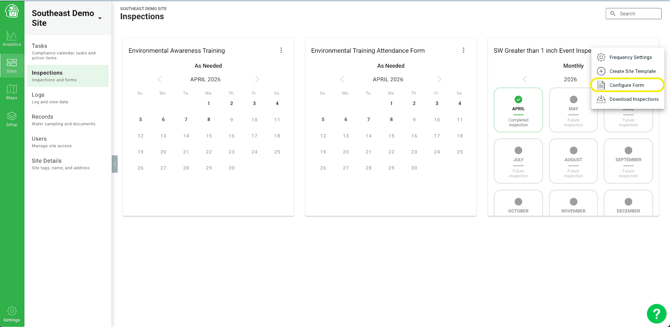
🔒 Some forms display a lock icon, indicating the template is locked. Locked templates can be unlocked. Reach out to your Customer Success Manager or help@mapistry.com for assistance.
Creating a New Form
You can now create forms directly from the Setup → Forms page using the "Create new form" button in the top right corner. Form creation is a two-step process: Basic Info, then Build.
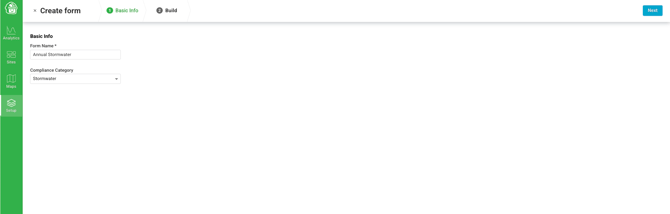
Step 1: Basic Info
Fill in the following fields, then click Next to proceed:
- Form Name (required) — The display name for your form.
- Compliance Category — Assign the form to a category (e.g., Stormwater, Air, Waste).
Step 2: Build
The Build step has two panels:
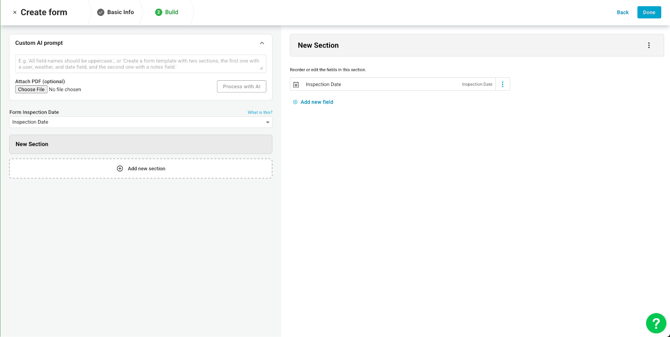
Left panel — Form settings:
- Custom AI prompt — Optionally enter a prompt to have AI help generate or customize your form. For example: "All field names should be uppercase" or "Create a form template with two sections, the first one with a user, weather, and date field, and the second one with a notes field." You can also attach a PDF to have AI process an existing form.
- Form Inspection Date — Select which field in the form should be used as the inspection date.
- Sections — Add and name sections using the "Add new section" button.
Right panel — Form preview and editing:
- Displays the live structure of your form as you build it.
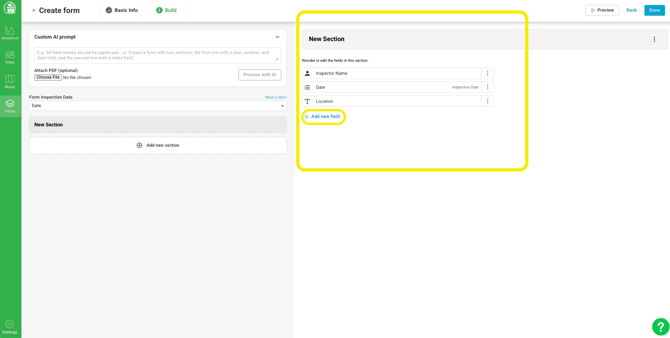
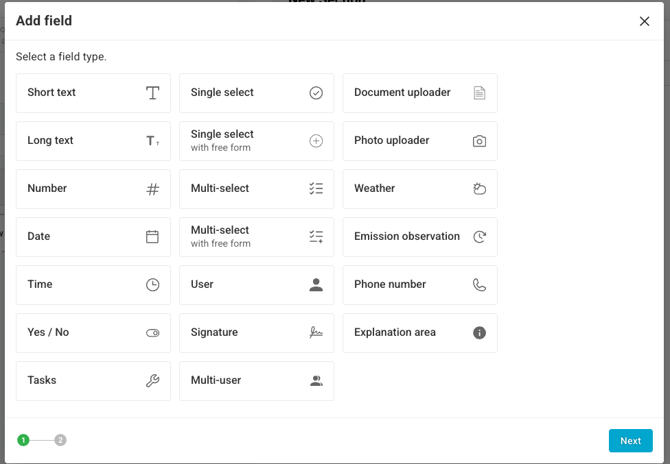
- Click "Add new field" within a section to add fields. You can choose from the following field types:
Previewing Your Form:
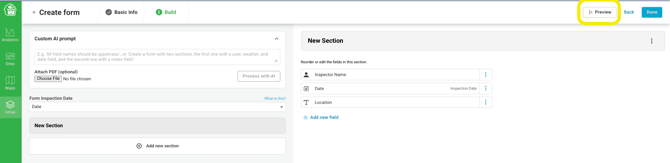
Before clicking Done, you can check exactly how your form will look and behave for a specific site by clicking Preview in the top right corner of the Build step.
This opens a Form Preview modal:
- Choose a site to populate site-specific fields (location, weather, users) using the dropdown in the top right of the modal. Selecting a site fills in real data from that site wherever the form references site-specific fields, so you can confirm they're pulling the correct values (e.g., the Inspector Name field populating with an actual Mapistry user for that site).
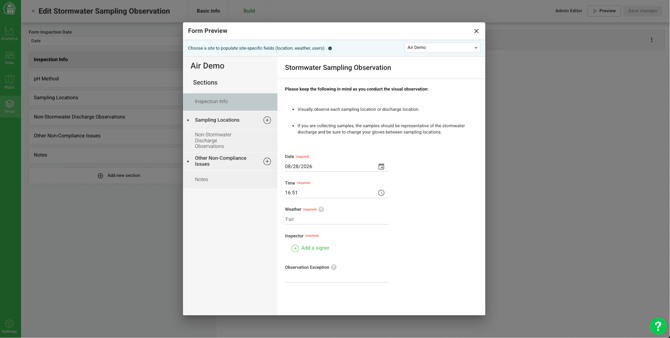
- The left side of the modal lists your form's Sections - select a section to view its fields rendered on the right, exactly as they'll appear to someone filling out the form.
- Close the modal (✕ in the top right) to return to the Build step and keep editing.
💡 Use Preview any time you want to double-check field labels, required indicators, or site-specific data before saving changes - it reflects the form as it currently stands in the Build step, including any unsaved changes.
When you're done building, click Done in the top right corner to save your new form.
Once your form is created, you'll see a confirmation message at the top of the screen. Note that assigning the form to sites is not yet self-serve — contact your Customer Success Manager or help@mapistry.com to have the form assigned to the appropriate sites.
Edit Form Fields
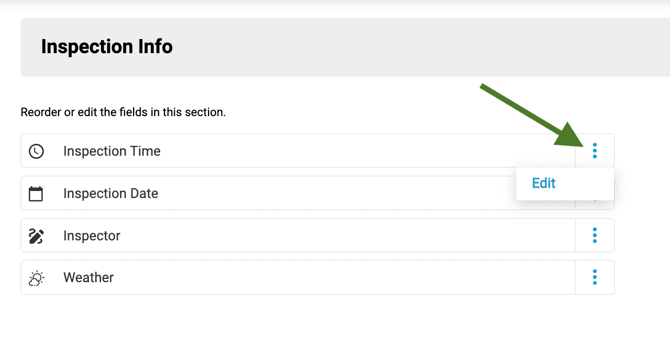
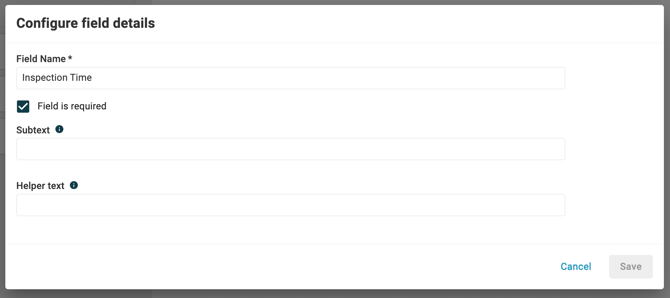
Clicking on the three dots next to a field name will allow you to make changes to the field details, like changing if it is required, and adding subtext and helper text. Options include:
- Edit field — Make changes to field details, like changing if it is required, and adding subtext and helper text.
- Edit conditions — Create or make changes to conditional logic that triggers questions.
- Move - Move to a different section in the form
- Duplicate — Create a copy of the field
- Delete — Delete the field.
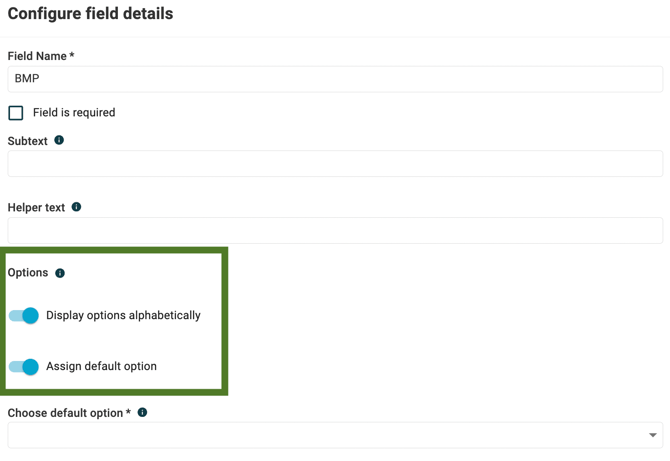
Display options alphabetically and assign a default option under 'Options'.
Locking a Field
Within the Configure field details screen, you can check Locked to protect a field's value from being edited by site contributors when they complete a submission.
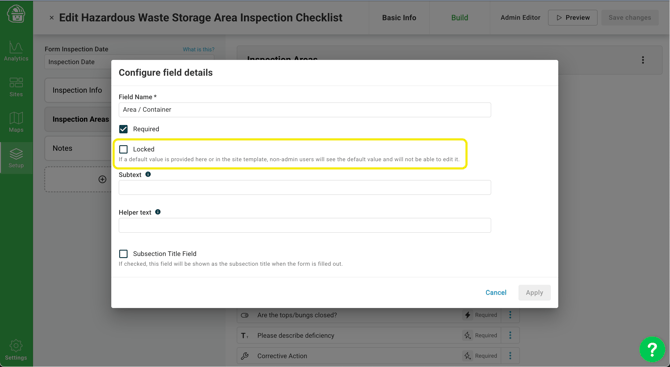
How this works depends on whether the field has a value already set:
- If the field is locked and has a value - either set in the site template or as a default value in the Form Builder - site contributors won't be able to edit that value on the submission. The field will show as read-only with the pre-filled value.
- If the field is locked but has no value set in either the site template or as a default, anyone completing the form can still fill it out normally. Locking only takes effect once a value exists to protect.
- Admins can always edit locked fields, regardless of whether a value is pre-filled - the Locked setting only restricts non-admin site contributors.
💡 This is different from a locked form template (see the 🔒 note under "Accessing the Form Builder" above), which restricts who can edit the structure of the form itself. Locking a field controls whether its value can be changed on a submission.
Once you're happy with the changes you have made, be sure to click 'Save Changes' in the top right corner of your screen.
Using Conditional Logic
Conditional logic controls when fields appear in a form based on responses to other fields. This helps keep forms focused by only showing questions that apply.
How It Works
Conditional logic is set on individual fields. Open a field’s menu and select Edit conditions to create a rule.
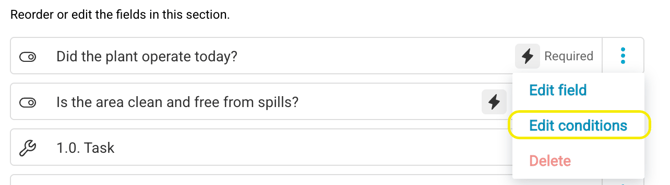
Each rule follows this pattern:
- If a selected field meets a condition
- Then show one or more other fields
For example, if Did the plant operate today? is Yes, the form can show Is the area clean and free from spills? If the condition is not met, the field remains hidden.
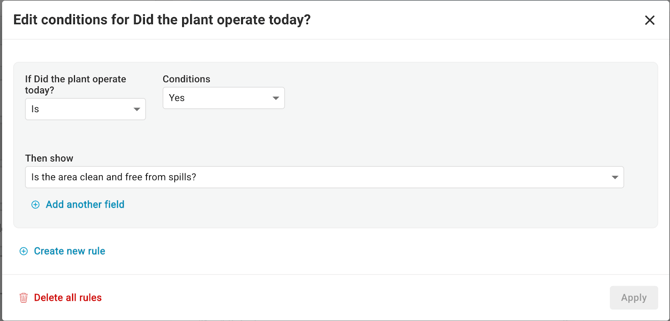
Rules are evaluated as the form is completed, so fields appear or disappear immediately.
Available Conditions
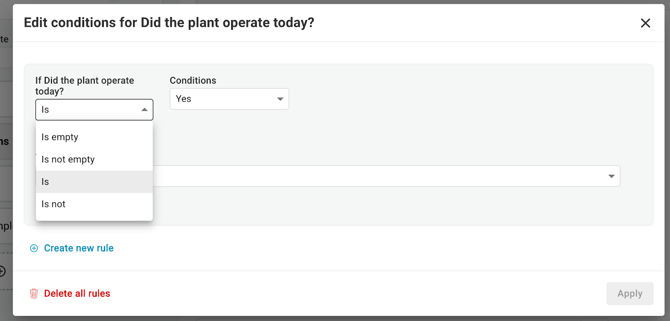
You can choose from the following condition types:
- Is
- Is not
- Is empty
- Is not empty
Managing Rules
- Use Add another field to show multiple fields in one rule
- Use Create new rule to add additional logic
- Use Delete all rules to remove conditional logic from a field
Conditional logic is useful for follow-up questions and reducing unnecessary fields in longer forms.
Duplicating Fields
You can duplicate any field in the form using the Duplicate option in the field's three-dot menu. The duplicated field(s) will be inserted immediately after the original field.
A few things to keep in mind depending on the type of field being duplicated:
- If the field is a trigger field (i.e., it has conditional logic that controls child fields), its child fields will also be duplicated. The relative order of all duplicated fields — the trigger and its children — will be maintained. The new fields will be inserted after the last field in the original "family."
- If the field is a child field (i.e., it appears based on conditional logic from another field), the duplicated field will carry over the same conditional rules as the original.
💡 Coming soon: the ability to duplicate entire sections.
Editing an Existing Form
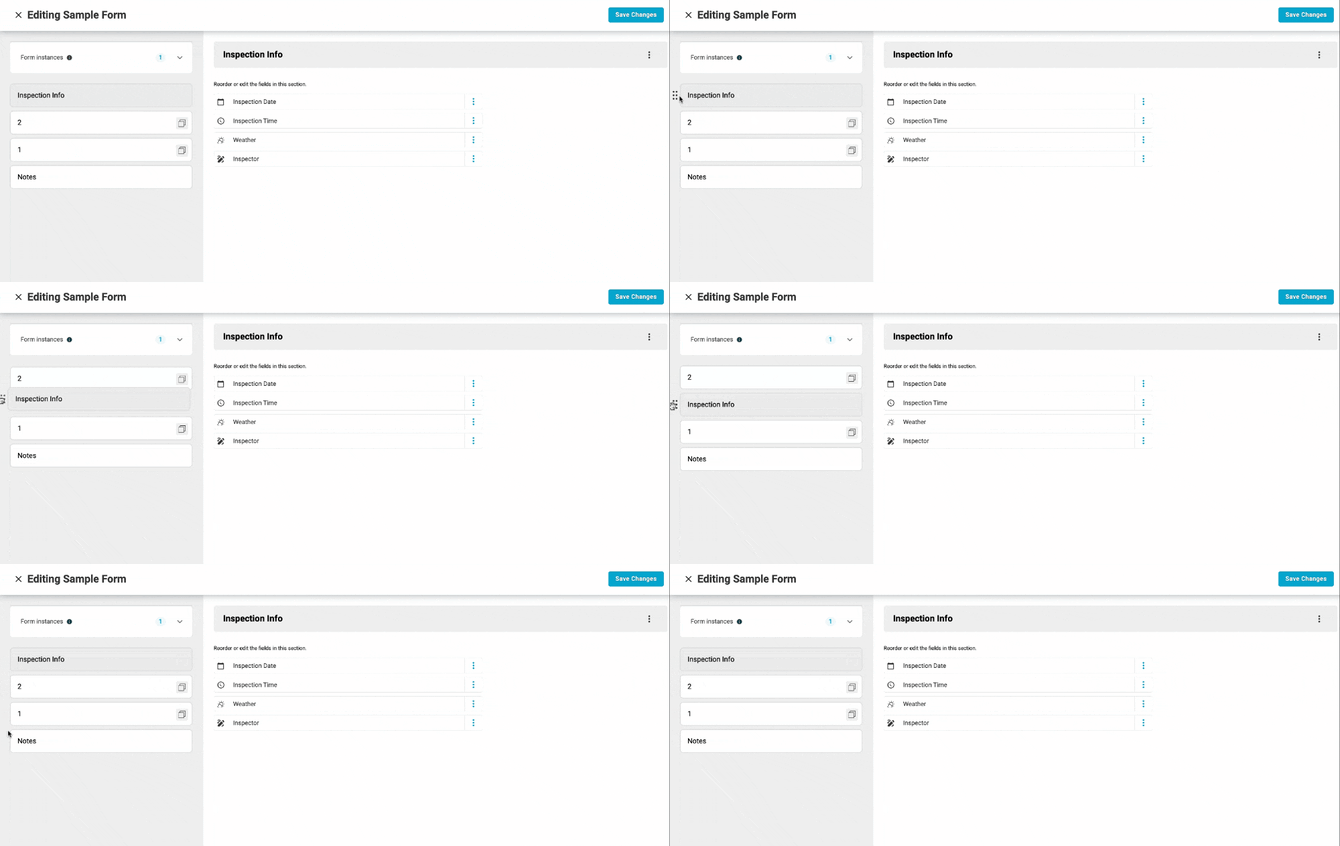
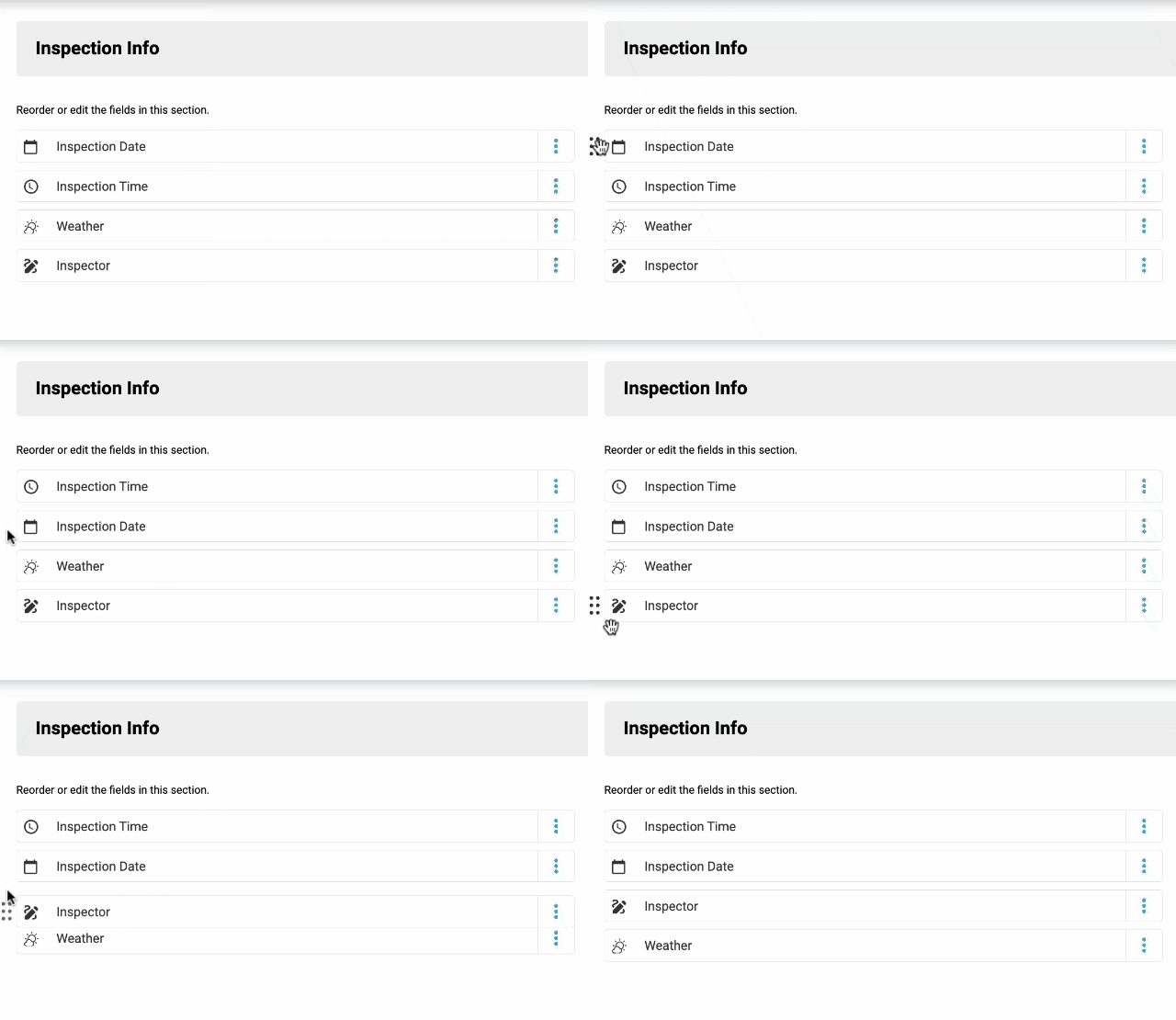
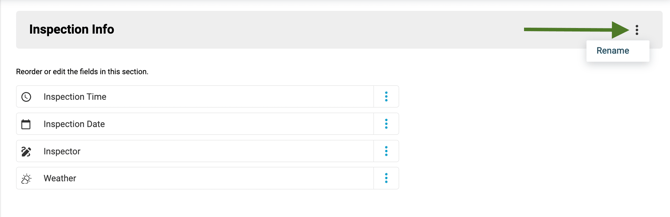
Once in the Form Builder, you can:
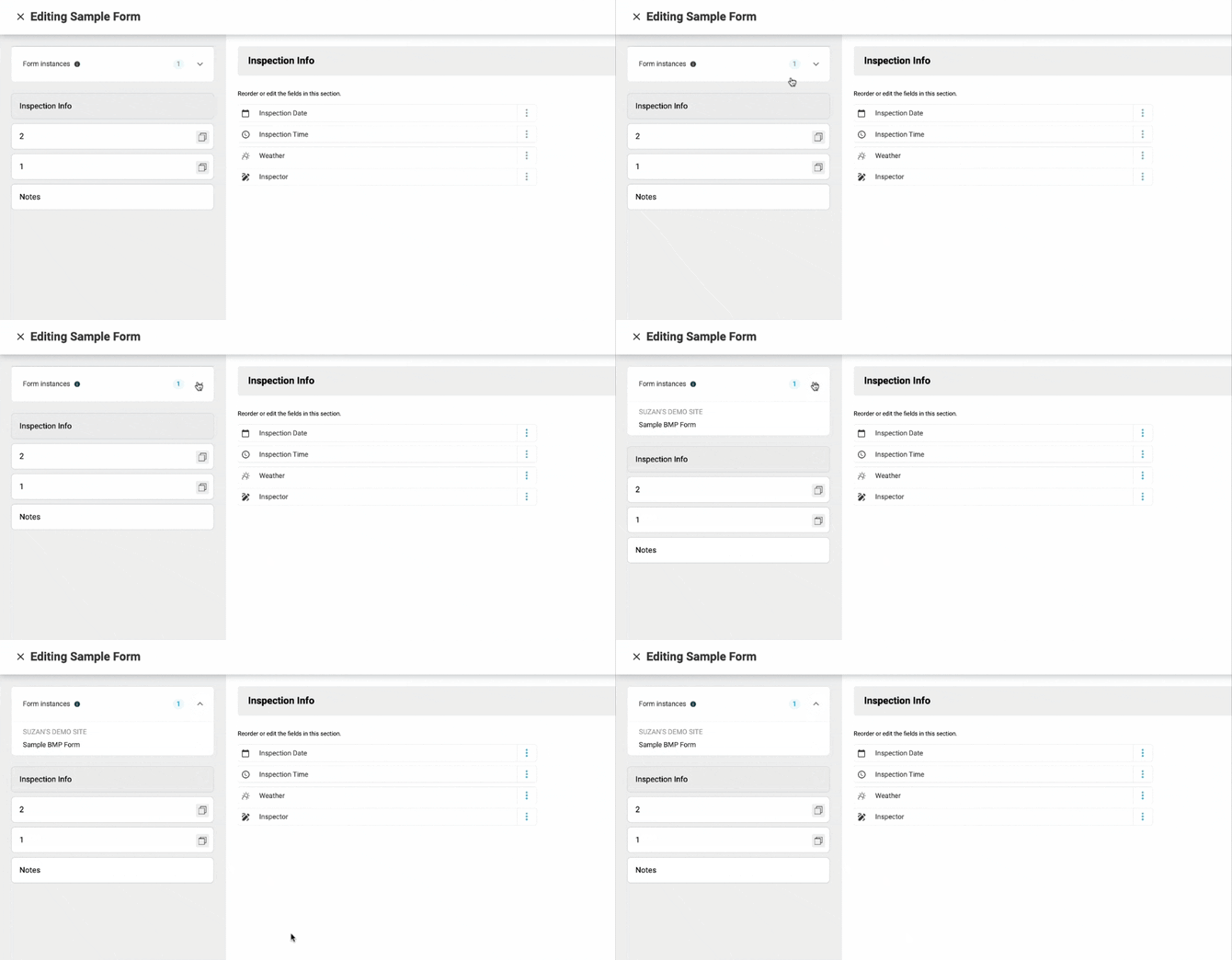
Check Site Attachment: See which sites your form is attached to. Click on the arrow next to "Form Instances" to expand the list.
Form Versioning
Form Versioning ensures that when you make updates to a form template, those changes only apply to future submissions, without affecting any past data.
When versioning is turned on, every time you edit and save a form template, Mapistry automatically creates a new version of that form. All your calendars and templates that use this form will seamlessly move to the new version.
What Gets Copied to a New Version
When a new version is created
All fields, groups, field and group slugs, properties, conditions, attached PDF templates, and categories are carried over.If a change you make would break a linked template (for example, deleting a field option that a template uses), Mapistry prevents the change to keep everything consistent.
Over time, Mapistry will automatically remove old, unused form versions that have no submissions, and are no longer linked to any calendar.
If you’ve bookmarked a link to a form template, note that the link will point to the older version after you make edits. To ensure you’re viewing or editing the latest version, use the updated link that appears after saving.
End of Article
Support
If you have any questions or need further assistance, please e-mail help@mapistry.com