
The Compliance Calendar is an updated view which shows you all compliance activities (i.e., tasks, inspections and logs) on the site in a calendar view. You can switch between Month, Week, and List views using the dropdown next to the date range in the top left of the calendar.
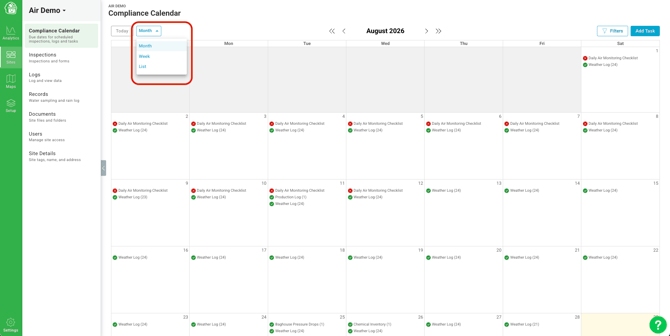
You can now see if a Task, Inspection, or Log is overdue, completed, or coming up in the future with a glance.
 The red 'X' means that the due date of the task has passed and is now overdue.
 The green check mark means that the task has been marked as completed.
 The blue '-' means that the task is neither overdue nor completed.
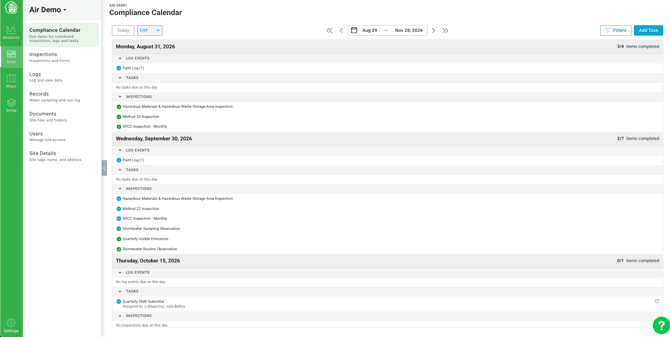
List View
The List view breaks down every day into Log Events, Tasks, and Inspections, so you can quickly see everything due, completed, or upcoming at a glance. Like the Month and Week views, the List view can be filtered by assignee, event type, and completion status - see Filtering the Compliance Calendar below for details.
Filtering the Compliance Calendar
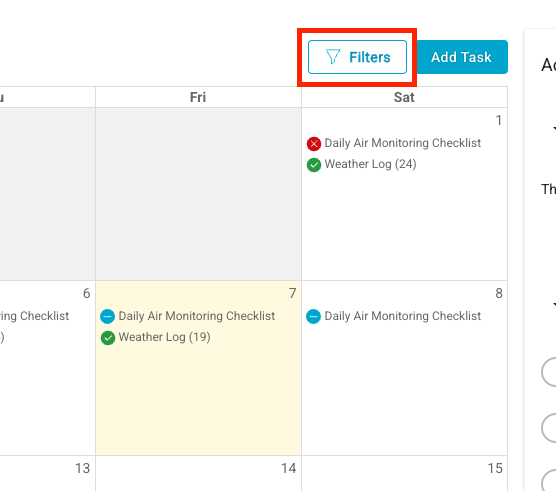
You can filter the Compliance Calendar to focus on the events that matter most to you. To get started, click the Filters button in the top right corner of the calendar.
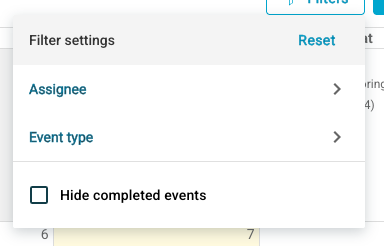
From the Filter settings panel, you can filter by:
- Event type: Choose which types of activities appear on your calendar. You can show or hide Log Events, Tasks, and Inspections in any combination.
- Assignee: Only show events assigned to specific team members. Use the search bar to quickly find a user, then check the box next to their name. You can select multiple assignees at once.
- Hide completed events: Check this box to remove completed events from view, so your calendar only shows what still needs attention.
The Compliance Calendar remembers your setup. Any filters you select are saved as your preferred view for that site, so the calendar will look the same way the next time you return.
Creating and Viewing Tasks
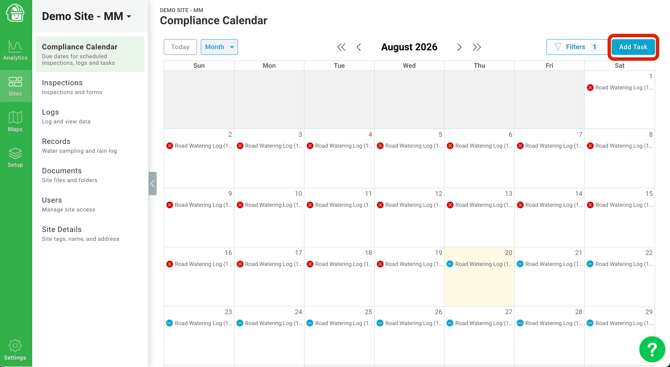
Tasks created from the Compliance Calendar or inspection forms will be on the calendar. To add an ad-hoc task to the Compliance Calendar, click the Add Task button in the top right corner of the calendar.
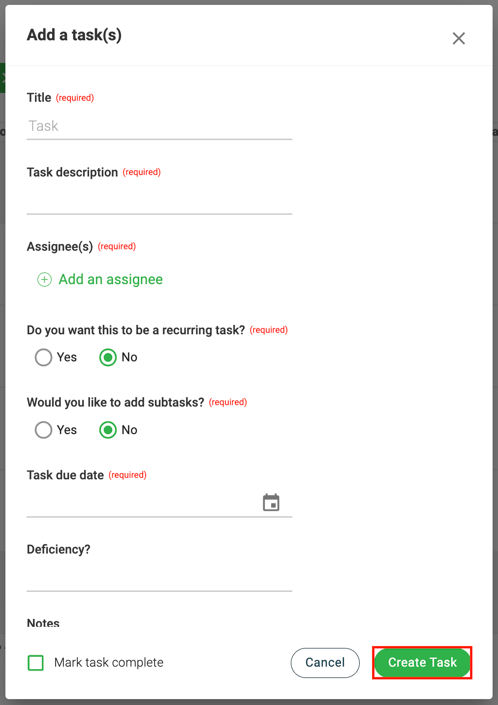
Here, you'll be able to add details to your task, such as the title, assignees, and due date. Once you have added the required information, click 'Create Task' to submit.
💡 To visually signify the type or importance of a task in the compliance calendar, you can use emojis.
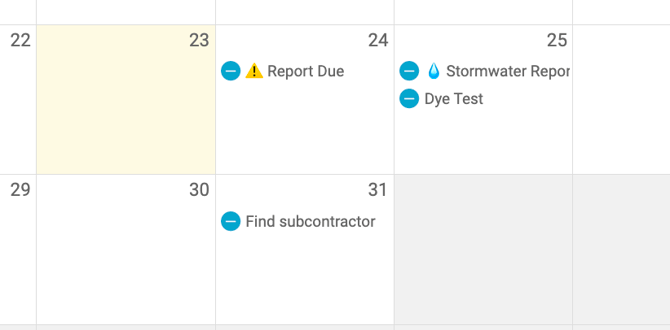
You'll then be able to view your task in the compliance calendar. For more information about Tasks, click here.
Viewing Environmental Data Platform Log Events
Logs created in the Environmental Data Platform can now be viewed as calendar events with due dates in the Compliance Calendar. Clicking on 'Add New Entry' will also allow you to enter data into the Environmental Data Platform manually or via file upload.
These calendar events are grouped by Log per day - if multiple entries are due for the same Log on the same day, only one calendar event will appear. For example, if three generators need readings taken once a month, only one calendar event will appear on the Compliance Calendar. Clicking the event shows all the frequency requirements due for that Log for that day.
If any requirement is not met, the overall status icon for the calendar event will appear incomplete (or missed if the due date has passed).
As-needed Log entries will appear as calendar events after they are submitted. As-needed Logs, by definition, don’t have due dates, so they won’t appear on the Compliance Calendar before they are submitted.
.gif?width=670&height=478&name=edp%20cc%20(1).gif)
💡When uploading data, there is an upper limit of 200 rows of data allowed to be uploaded via file upload at a time.
Log completion statuses are “sticky” when their frequency requirements change. If a new required Log field is added, past log entries for that Log will not be considered incomplete; i.e. they will still show up on the compliance calendar as 'completed.'
If you edit any field value of a past log entry, that entry's completion status will recalculate. So, in this case, if you edited a past log entry, but the new required field was not filled out, that entry will now be considered incomplete. If you remove a required log field from a log, a past entry that did not have a value for the required field that was removed will still be considered incomplete unless any value from that log entry is updated. When the entry is updated, the completion status will be recalculated. This matches the behavior seen in Forms.
💡 You can view all the data submitted into a Log by clicking on 'View Log Records' in the modal that pops up when you click on an event in the calendar.
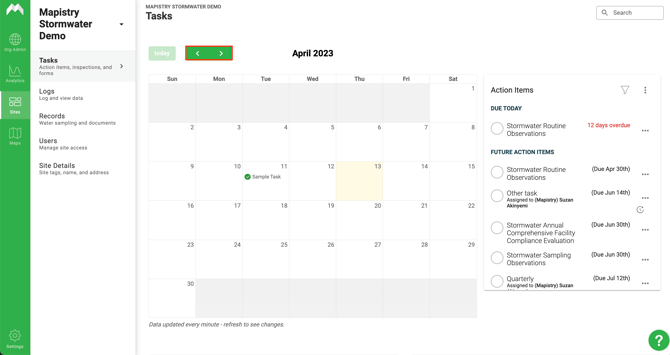
Clicking on the arrows at the top of the calendar will allow you to view your past and future tasks. Tasks that are due more than a year into the future will not be visible on the calendar until the task is due within a year. We recommend going to your organization's task analytics pages to see further than a year.
End of Article
Support
If you have any questions or need further assistance, please e-mail help@mapistry.com.