
Maple AI extracts data from PDFs, photos, and emails and turns it into log entries in Mapistry, so you don't have to retype it by hand. You upload or forward a document, Maple AI fills in the log fields, and you review the results before they're saved.
💡 Maple AI is an add-on available on the Enterprise tier and is set up per log. If you'd like to enable Maple AI on a log, reach out to your Customer Success Manager or help@mapistry.com.
💡 Once data is saved to a log, it flows through Mapistry like any other log entry: calculations, limit monitoring, reports, and dashboards all use it automatically.
What Can Maple AI Process?
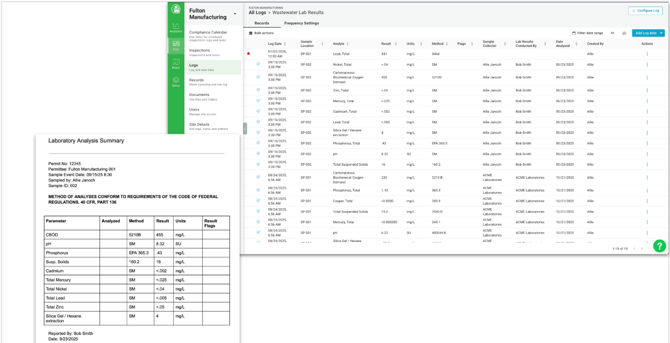
Maple AI works best for data that arrives outside Mapistry or is still kept on paper. Common examples include:
- PDFs that get emailed to you - Lab reports with stormwater or wastewater sample results, vendor receipts, and monthly coating or solvent usage reports.
- Emails with data in the body - Purchase records or usage summaries typed directly into an email, with no attachment needed.
- Photos and scans of paper logs - Sweeper logs, welding logs, or truck logs filled out by operators who can't or don't want to use an app.
- Paper-based industry forms - Hazardous waste manifests and similar documents where paper is still the norm.
💡 Maple AI extracts data into the fields of an existing log. The log needs to be configured for Maple AI before you can submit documents to it.
Submitting Data to Maple AI
There are two ways to send data to Maple AI: uploading a file directly in the log, or forwarding an email to the log's unique email address.
Option 1: Upload a File
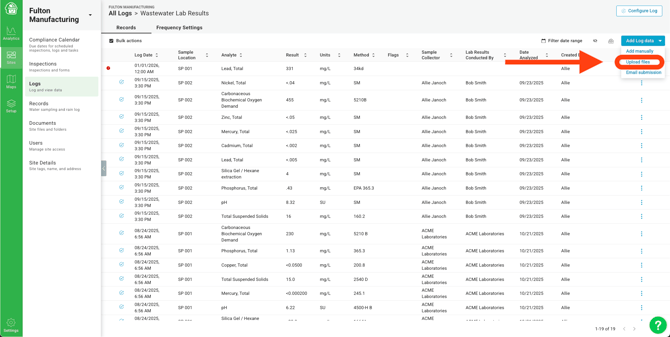
- Navigate to Logs in the left sidebar and open the log you want to add data to.
- Click the Add Log data dropdown in the top right corner and select Upload file.
- In the File Upload window, click Upload file and select your PDF or photo (maximum size: 10MB). Supported formats: PDF, JPEG, PNG
- Click Next. Maple AI will begin processing your file.
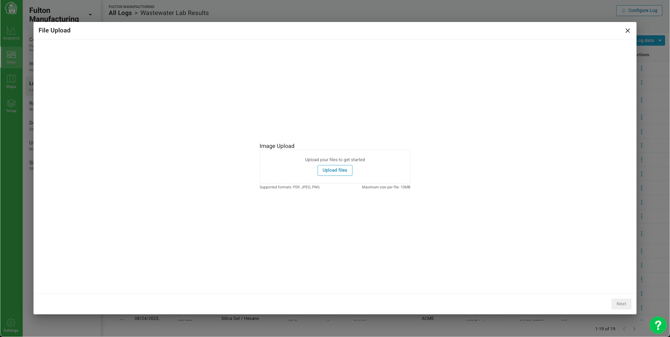
💡 Processing may take a few minutes. Please don't close the browser tab while Maple AI is working on your file.
Once processing is complete, the review modal opens so you can check the extracted entries before saving them (see Reviewing AI-Extracted Entries below).
Option 2: Email Submission
Each log set up for Maple AI has its own unique email address. Anything you forward to that address is processed automatically, so you can send vendor reports or lab results straight from your inbox.
To find a log's email address:
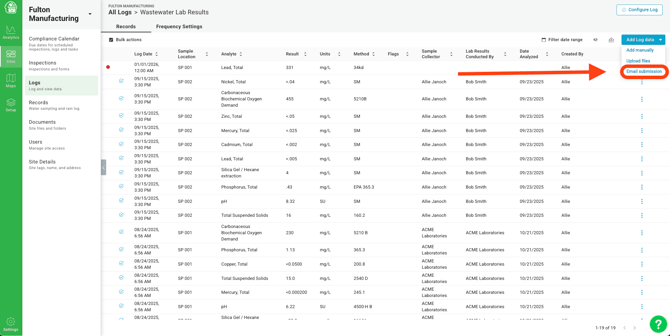
- Navigate to Logs and open the log.
- Click the Add Log data dropdown and select Email submission.
- Copy the email address shown.
Maple AI processes both the attachments (PDFs and photos) and the body of the email. If a vendor sends usage numbers in the text of an email rather than as an attachment, you can forward it the same way.
💡 Tip: Save the log's email address as a contact in your email client, or set up an automatic forwarding rule for recurring reports from the same vendor or lab.
Submission Confirmation Email
After Maple AI processes your email, you'll receive a MapleAI Email Submission Received email from Mapistry. It includes:
- The email that was processed - The subject line and the date and time it was received.
- The log and site - Which log and site the entries were added to (e.g., Wastewater Lab Results on the Fulton Manufacturing site).
- Results for each file - How many entries were generated from each attachment, with a Click here link to view and review them.
- A link to the log - Opens the full log, including the entries you just submitted.
- Your original email and attachments - Attached for your reference.
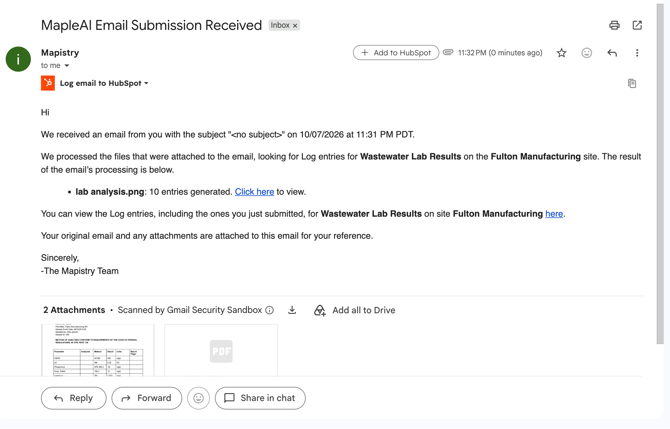
💡 Use the Click here link in the confirmation email to go straight to the new entries, review them, and confirm them.
💡 Entries created by email are added to the log without a human looking at them first. We recommend reviewing and confirming them regularly (see Confirming Email-Generated Entries below).
Reviewing AI-Extracted Entries
After Maple AI processes a file, the File Upload review modal shows every entry it extracted so you can check them against the original document.
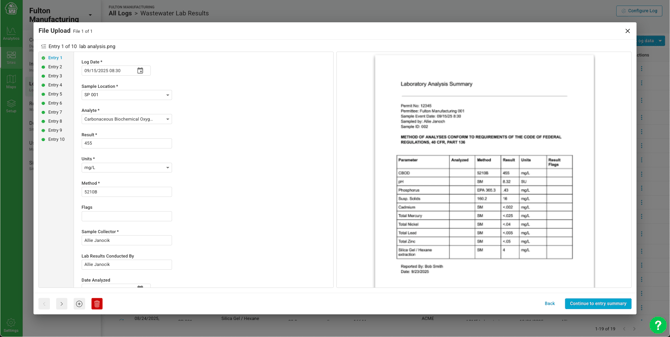
The review modal has three areas:
- Entry list (left) - Every entry Maple AI extracted (e.g., Entry 1 of 10). Click an entry to open it.
- Entry fields (center) - The log fields filled in by Maple AI, such as Log Date, Sample Location, Analyte, Result, Units, and Method. Required fields are marked with an asterisk (*). Edit any field to correct a mistake.
- Source document (right) - The original PDF or photo, so you can compare values side by side. Use the zoom controls to read small text.
Use the arrow buttons in the bottom left corner of the modal to move between entries, or click an entry in the entry list to jump straight to it.
Adding an Entry
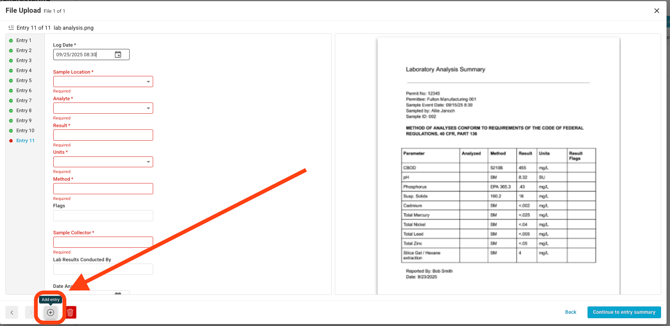
If Maple AI missed a value in your document, click the Add entry button (the + icon in the bottom left corner of the modal) to create a new entry. Fill in the fields manually, using the source document on the right as your reference.
Deleting an Entry
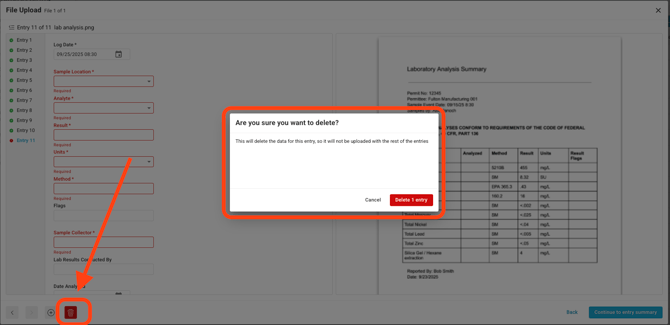
If Maple AI extracted something you don't want in the log (for example, a duplicate value or a parameter you don't track), open that entry and click the Delete entry button (the red trash icon in the bottom left corner of the modal).
Reviewing the Entry Summary
When you're ready, click Continue to entry summary in the bottom right corner of the modal. You can do this at any point; you don't need to click through every entry first.
The entry summary shows every entry extracted from the file in a single table, one row per entry, so you can scan all of the values at once.
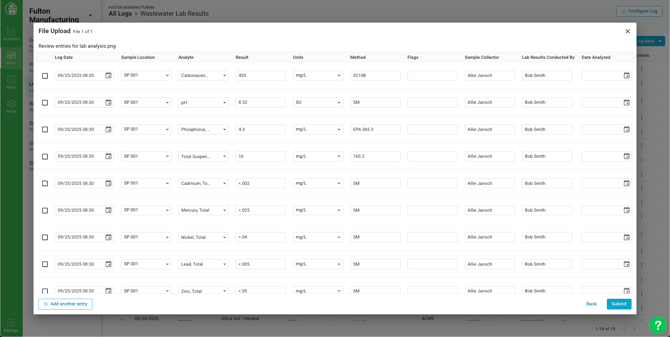
From the entry summary, you can:
- Edit values inline - Click any cell to correct it directly in the table.
- Confirm entries - For email submissions, click Confirm entries in the bottom right corner to confirm every entry from that submission at once (see Confirming Email-Generated Entries below).
- Add another entry - Click Add another entry in the bottom left corner to add a row for a value Maple AI missed.
- Go back - Click Back to return to the entry-by-entry view and compare against the source document.
When everything looks right, click Submit to save the entries to your log. The new entries will appear in your log alongside your existing records.
💡 The entry summary is the fastest place to catch errors across a whole file. For example, a misread decimal (a Phosphorus result of .43 extracted as 4.3) stands out when you scan the Result column.
💡 AI can make mistakes, especially with handwriting, faded scans, or unusual layouts. Always compare extracted values against the source document before saving.
Confirming Email-Generated Entries
You can now confirm entries that Maple AI created from an email. Confirming an entry marks it as reviewed by a person, so your team can tell at a glance which AI-generated data has been checked and which hasn't.
💡 Confirmation only applies to entries created through email submission. Entries uploaded on the web or mobile app are confirmed automatically, because you review them in the modal before they're saved.
How to Confirm Entries
- Open the log that received the email submission.
- Open the review modal for the submission, either by clicking Review AI entry in the log’s Actions column or by clicking the Click here link in the confirmation email. It looks the same as the review modal used for file uploads.
- Review the entries, then click Continue to entry summary.
- Click Confirm entries in the bottom right corner. All entries from that Maple AI submission will be confirmed at once.
.png?width=670&height=184&name=Screenshot%202026-10-08%20at%2010.36.36%20AM%20(1).png)
While reviewing, you can also edit fields, use Add entry to capture missed values, and use Delete entry to remove anything that doesn't belong, just as you would for an uploaded file.
💡 We recommend building a regular review into your routine (for example, weekly, or before you run a monthly report) so that unconfirmed entries don't pile up.
AI Data & Privacy
- Mapistry uses the OpenAI API to power Maple AI. Data sent through the API cannot be used to train OpenAI's models.
- You own the output. Data extracted by Maple AI belongs to your organization.
- Mapistry may use submitted data to train and improve Maple AI, for example to improve extraction accuracy on waste manifests.
Frequently Asked Questions
Which logs can I use Maple AI with? Maple AI is set up on a log-by-log basis. Contact your Customer Success Manager or help@mapistry.com to enable it on a new log.
What file types are supported? PDFs and photos, up to 10MB per file. For email submission, Maple AI also reads the text in the body of the email.
Do I need to confirm entries I uploaded myself? No. Entries uploaded on the web or mobile app are confirmed automatically. Only email-generated entries need to be confirmed.
What happens if Maple AI gets a value wrong? Edit the field in the review modal before saving or confirming. If the value is wrong after it's been saved, you can edit the entry from the log like any other record.
End of Article
Support
If you have any questions or need further assistance, please e-mail help@mapistry.com