
Effective dates let you track how a Resource property changes over time. Instead of overwriting a value (for example, a paint's VOC content after an updated SDS), you add a new value with a start date, and Mapistry keeps the earlier values as history with their own start and end dates. These dates are used for workflows, when applicable with, such as calculating the amount of emissions over a time period when the VOC emission factor changed.
You can see which Resources have historical values directly from the Resources list, view the full history in one click, and edit or add values from the Resource itself.
💡 Effective dates are set up per field on a Resource type. If you're not sure whether you can edit your Resource types, reach out to your Customer Success Manager or email help@mapistry.com.
💡 Effective dates are best suited for properties that change over time, such as VOC content, HAP content, density, or a permit limit.
Enabling Effective Dates on a Field
Effective dates are turned on for individual fields within a Resource type.
- Navigate to Setup → Resources in the left sidebar and open the Resource type you want to update (e.g., Paints).
- Click Settings in the top right corner.
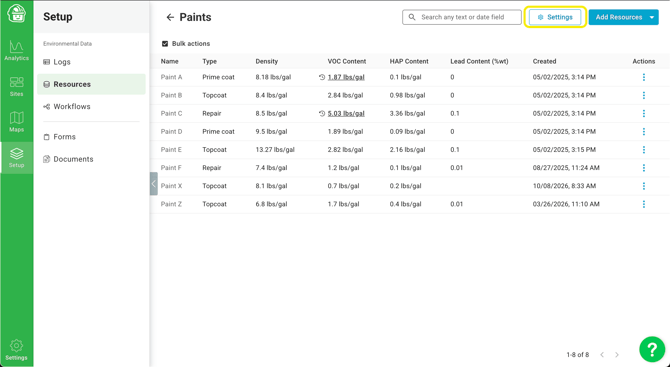
- On the Fields tab, click the three-dot menu next to the field you want to track over time and select Edit.
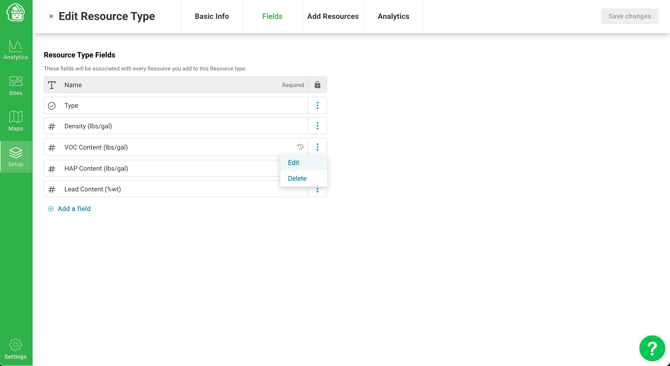
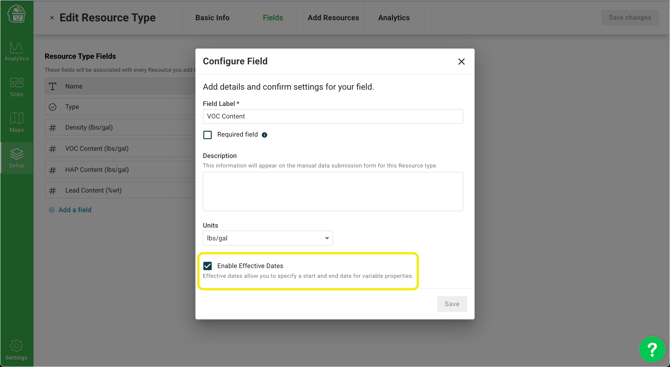
- In the Configure Field window, check Enable Effective Dates, then click Save.
- Click Save changes in the top right corner of the Edit Resource Type screen.
Fields with effective dates enabled show a history icon (🕓) next to their name on the Fields tab.
💡 Effective dates allow you to specify a start and end date for variable properties. Fields without effective dates enabled keep a single value, which is overwritten when edited.
Viewing Historical Values from the Resources List
You can now see which Resources have historical values without leaving the Resources list.
When a cell has historical values, a history icon (🕓) appears next to the current value, and the value is underlined. In the example below, Paint A and Paint C both have VOC Content history.
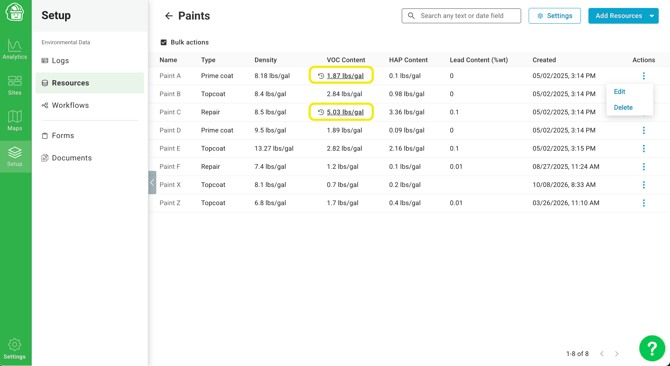
Click the underlined value to open the history window. It lists every value for that field, newest first, with:
- Value — The property value and its units.
- Start date — The date the value took effect.
- End date — The date the value was replaced. The current value shows Active.
- Reference — Optional notes about the source of the value (e.g., per updated SDS).
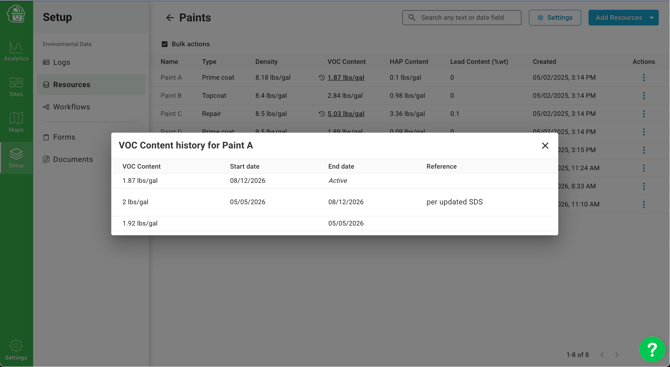
💡 You can also navigate the list and open the history window using your keyboard.
Viewing and Editing History on a Single Resource
Historical values also appear when you open an individual Resource, displayed the same way as in the list.
- In the Resources list, click the three-dot Actions menu next to the Resource and select Edit.
- In the Edit Resource window, fields with effective dates appear in a shaded box showing the current value, its Start date (marked Active value), and a Reference field.
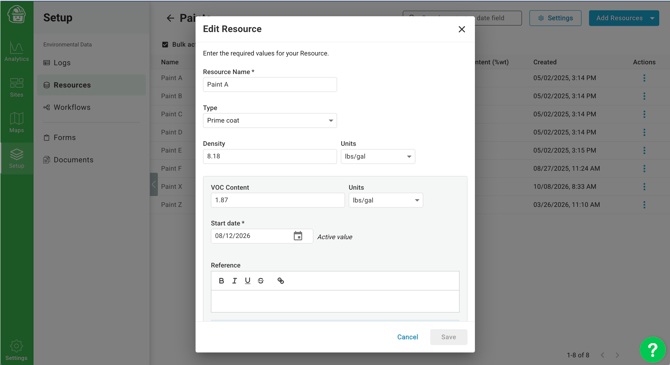
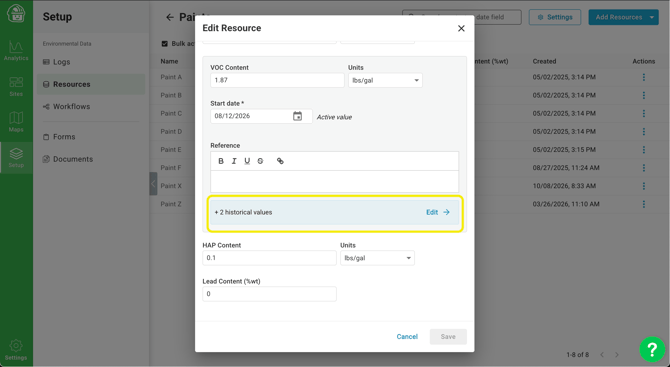
- Below the current value, a banner shows how many historical values the field has (e.g., + 2 historical values). Click Edit → to open the full history.
- The Edit [Field] history window lists the active value first, followed by each historical value with its start date, end date, and reference. From here you can update a value, change its dates, or click Delete to remove it.
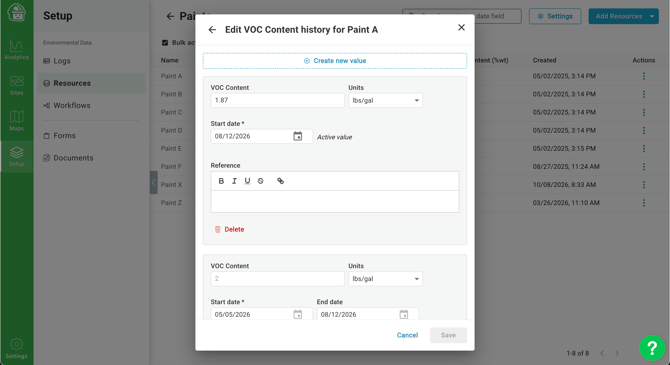
- Click Save to apply your changes, or use the back arrow to return to the Resource.
Adding a New Value
When a property changes (for example, a supplier sends an updated SDS or you have stack test results), add a new value rather than overwriting the current one.
- Open the field's Edit [Field] History window as described above.
- Click Create new value at the top of the window.
- Enter the new value and units, a Start date (required), and an optional Reference (e.g., the SDS name or a link to the source document).
- Click Save.
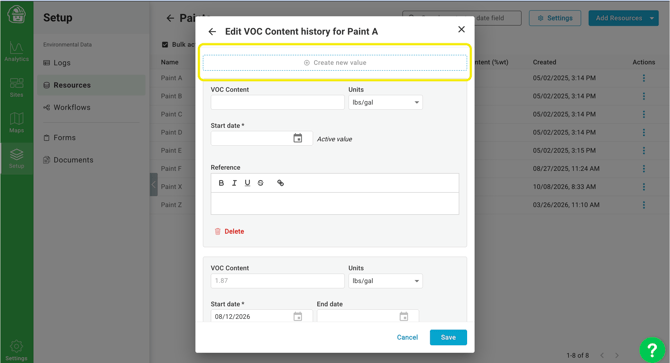
The new value becomes the Active value, and the previous value moves into the history. Each historical value's end date lines up with the start date of the value that replaced it, so you can always see which value applied on a given date.
💡 Use the Reference field to note where each value came from. It makes historical values much easier to verify during an audit. For example, upload a document in the Document Manager and then use the link to crosslink from the note.
Effective Dates in Workflows and Aggregations
When workflows use Resource properties with effective dates, calculations use the value that applied on the date of each record, so a property change doesn't rewrite past results.
Two recent improvements make aggregations more reliable when effective dates are involved:
- Grouping by a Resource with effective dates - You can now group by a Resource that has effective-dated fields in a workflow.
- More accurate aggregation - Aggregations that include effective-dated values are calculated correctly across value changes.
End of Article
Support
If you have any questions or need further assistance, please e-mail help@mapistry.com