
There are two ways to export your organization's data from Mapistry:
1. Downloading widget-specific data
2. Downloading whole dashboards
3. Scheduling delivery or export
Download Widget Specific Data
1. Hover over your widget of interest and click on the three dots. 
2. Hover over 'Export' to see all your export options.
💡 Tip: To download the underlying data and not the visualization, hover over 'Underlying data.'
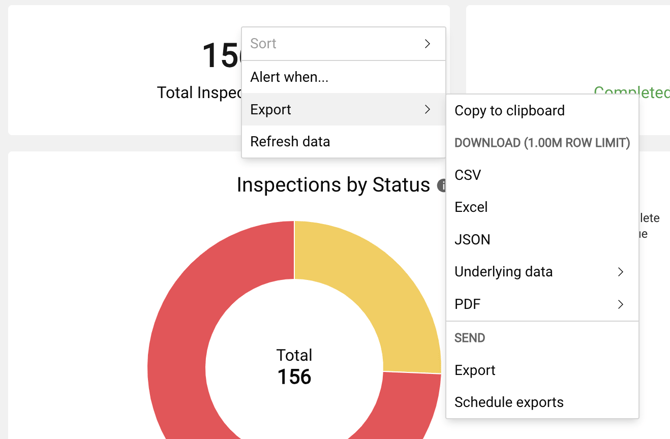
3. Select your preferred file type and click Download. Mapistry currently offers Excel, CSV, JSON, and PDF exports.
Downloading A Dashboard
1. Click on either arrow in the top-left corner of the Analytics page to open your dashboard actions.
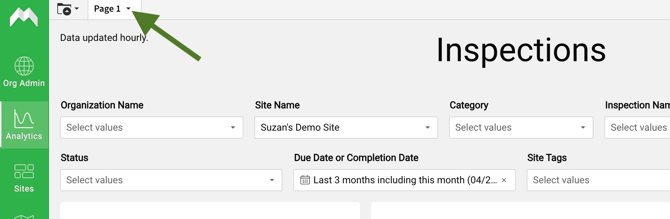
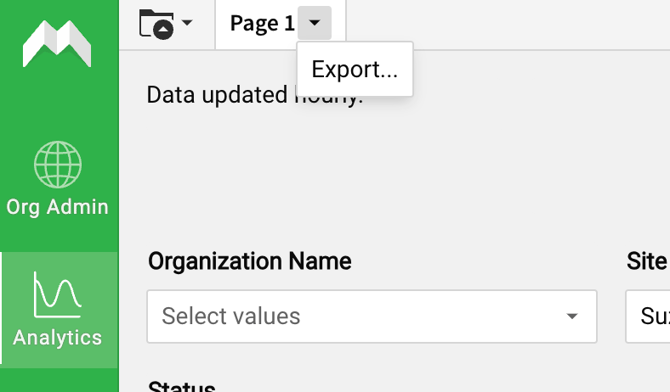
2. Click on Export.
3. Select "Entire Page" and click Export.
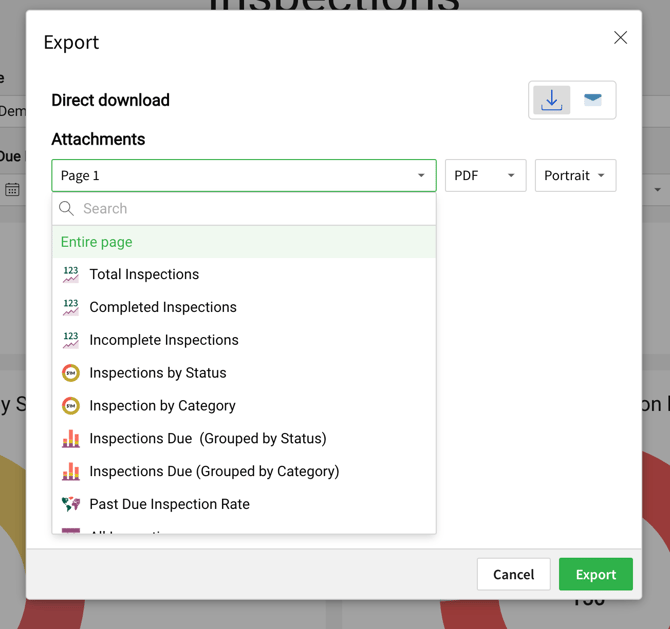
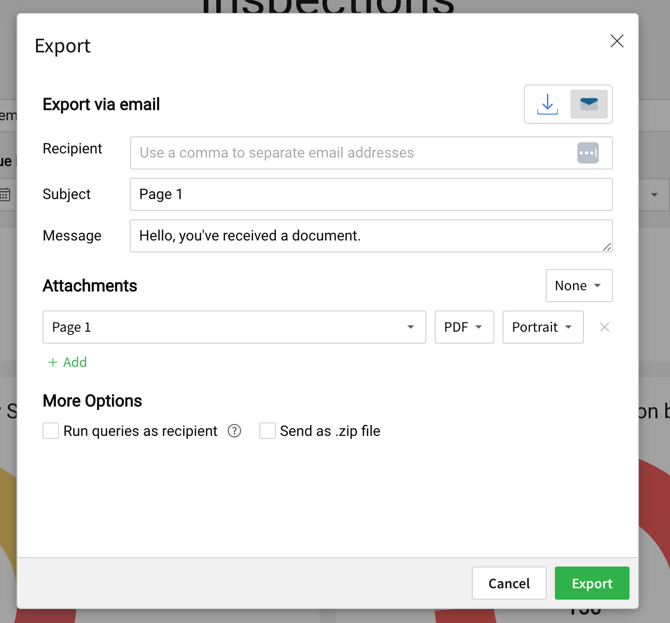
💡 Tip: To send a dashboard as an email, click on the envelope icon.
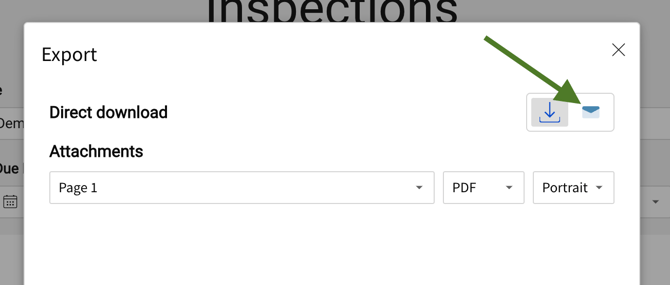
Fill out the details in the pop-up, then click 'Export.'
Scheduling Delivery or Export
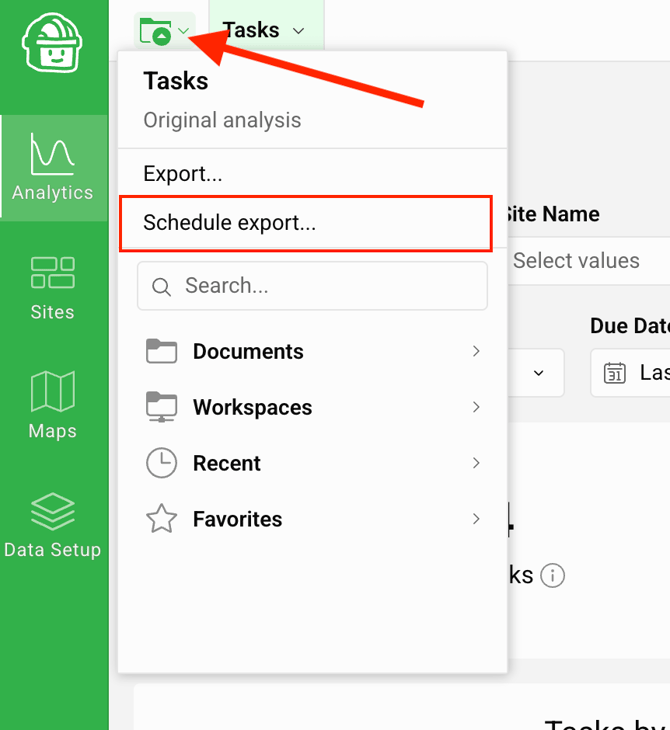
1. To schedule delivery of data or dashboard by email on a regular frequency, click on the folder icon in the upper left of the Analytics page. Then click on "Schedule Export".
2. Customize your schedule export for specific users, such as members of the management team that don't login to Mapistry (you can just use emails). Also, adjust the subject, message and timing of delivery.
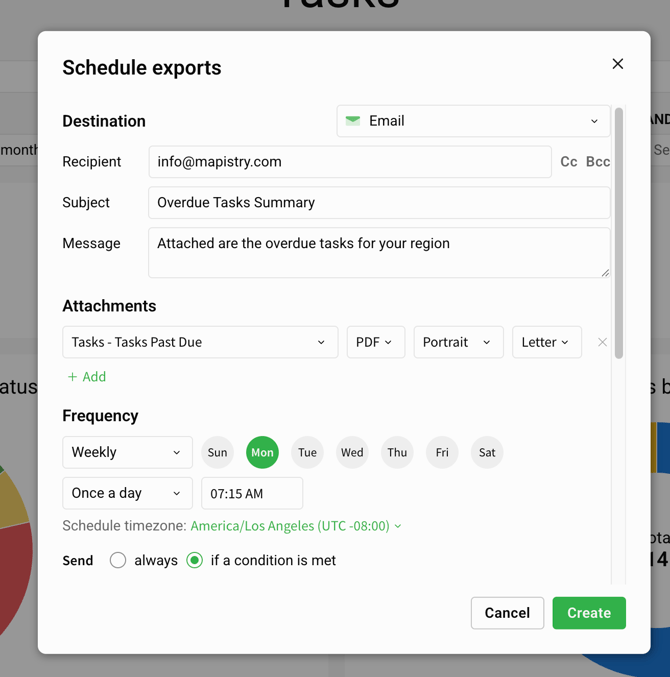
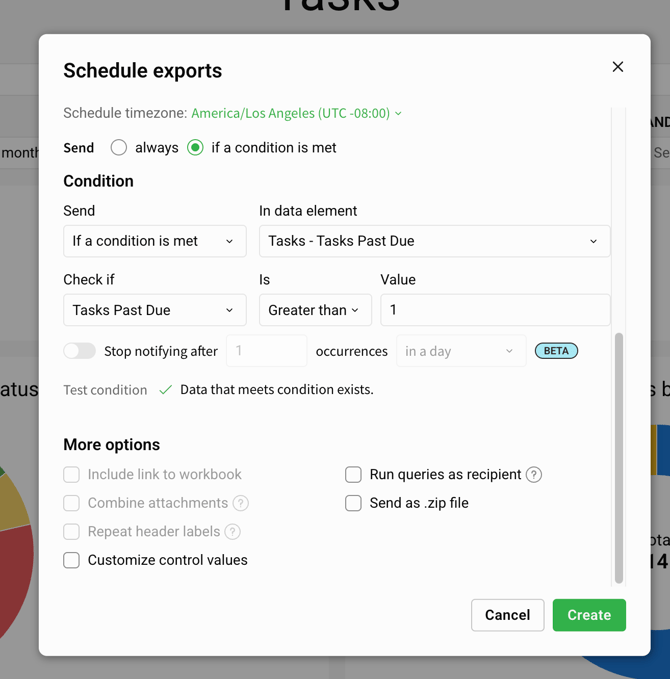
3. If you want to send the whole dashboard on a regular basis, no need to adjust further. However, if you want to schedule the export to only occur if certain conditions are met, such as overdue tasks (i.e. an escalation dashboard to the VP of an area), configure those conditions in the modal.
The example below is for sending the "Tasks Past Due" table if more than 1 task is overdue each Monday morning.
End of Article
Support
If you have any questions or need further assistance, please e-mail help@mapistry.com.