
Document Folders
Document Folders give Organizations a structured way to store and share files across sites. Folders can be shared with every site in the Organization, or managed independently by each site, so teams can keep SDS sheets, SOPs, and policies in one place while still allowing sites to manage their own site-specific files.
Creating a Folder
Folders are created by Organization Admins, and every site in the Organization shares the same list of folders.
To create a folder, navigate to Setup → Documents, then click Create folder in the top right corner.
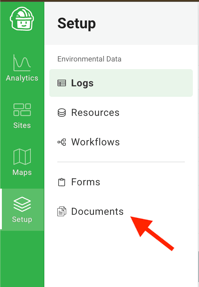
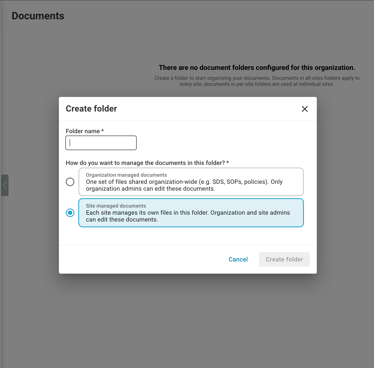
Give the folder a name, then choose how it will be managed:
- Organization managed documents — One set of files shared organization-wide (e.g. SDS, SOPs, policies). Only Organization Admins can add, edit, or delete documents in this folder.
- Site managed documents — Each site manages its own files within the folder. Organization Admins and Site Admins can edit these documents.
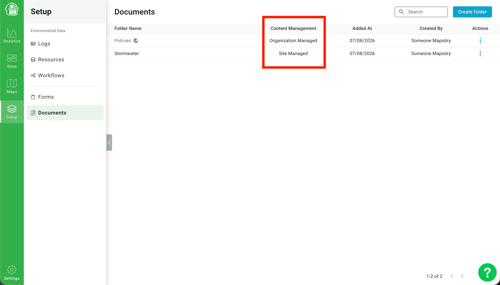
Once created, folders appear in the list along with whether they're global (Organization managed) or site-specific.
Adding Documents to an Organization-Managed Folder
From Setup → Documents, click into a folder to view and manage its contents. Click Add documents in the top right corner to upload files.
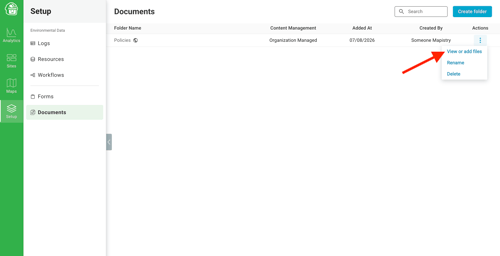
Documents added here are visible to every site in the Organization. Site contributors can view and download these files from their site's Documents page, but they cannot edit or delete them — only Organization Admins can make changes.
Adding Documents at the Site Level
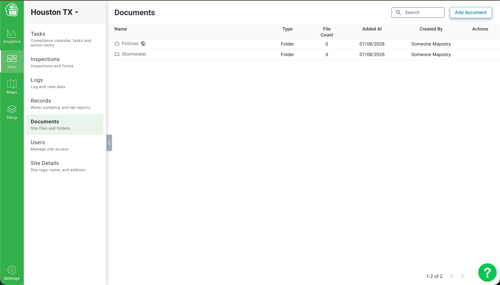
Site-managed documents are added directly from Sites → Documents. Site contributors can upload documents into a folder, or leave them in the parent directory if no folder applies. Unlike Organization-managed documents, site contributors can add and delete these files freely.
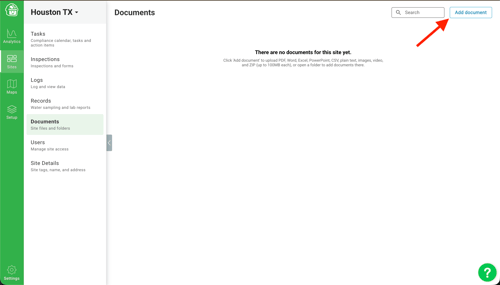
When viewing the Documents page for a site, users will see both their site-specific documents and any Organization-managed folders and files — the two live side by side, though only the site-scoped ones are editable at the site level.
Current Limitations
Document Folders are still evolving. A few things to keep in mind for now:
- Folders can only be one level deep — nested folders (folders within folders) aren't supported.
- Documents can't be bulk downloaded, moved, or previewed.
- Documents are sorted alphabetically only; there's no option to sort by date or file type.
- Search is limited to the document name — it doesn't search document contents.
- Documents uploaded to tasks, forms, or MapleAI won't appear in Site → Documents, and documents added in Site → Documents can't be attached to tasks or forms.
Support
If you have any questions or need further assistance, please e-mail help@mapistry.com.