
If your organization has Maple AI, it can be used with any log to extract data from documents/images. However, you can also customize that AI processing for a particular log.
This article is for admins who want better accuracy on a specific log. The Maple AI settings on a log let you give the AI instructions about your documents, so it reads them the way your team does.
Don't have Maple AI yet? Maple AI is an add-on available on the Enterprise tier. To add it to your contract or want help with custom MapleAI for a log, reach out to your Customer Success Manager or help@mapistry.com. To learn more, see Maple AI.
Before you start
- You must be an Organization Admin. You need permission to edit the log in Setup.
- Have a sample document ready, such as a scanned or photographed copy of the paper log. You'll describe it in your prompt and use it to test your changes.
Open the AI Setup tab for a log
You can reach a log's settings from the log itself or from Setup.
- From the log: open the site's Logs page, select the log, and click Configure Log in the top right.
- From Setup: go to Setup → Logs, select the log, and click Edit Log.
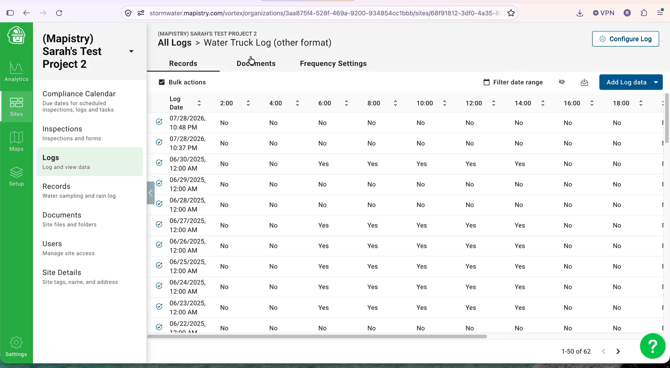
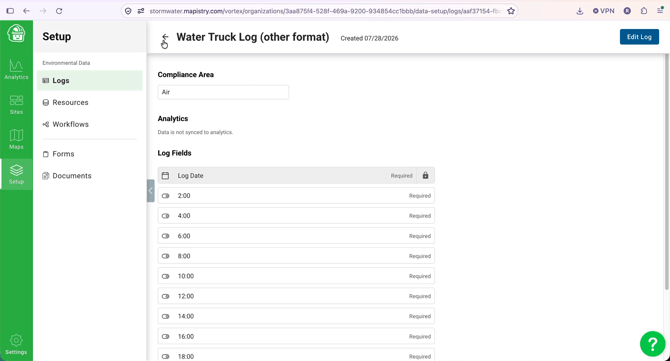
Both open the Edit Log page. Click the AI Setup tab.
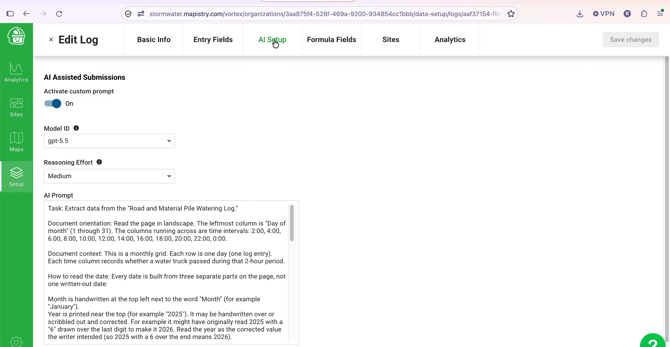
Configure Maple AI
The general process to configure MapleAI is:
- Turn Activate custom prompt on
- Choose a Model ID and a Reasoning Effort
- Write your instructions in the AI Prompt
- Test your settings with your sample document
- Save changes for your settings.
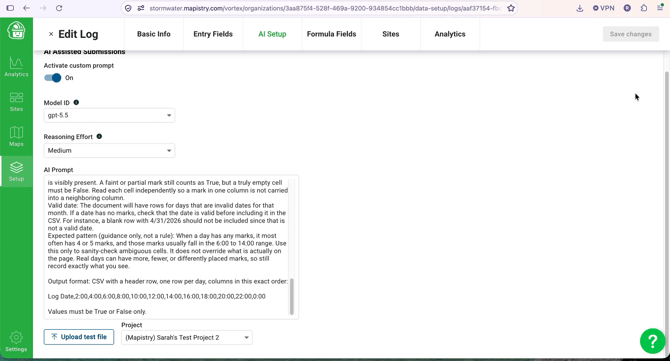
Activate custom prompt
When this setting is turned off, the log will use the general MapleAI to process any documents submitted.
Choose a model and reasoning effort
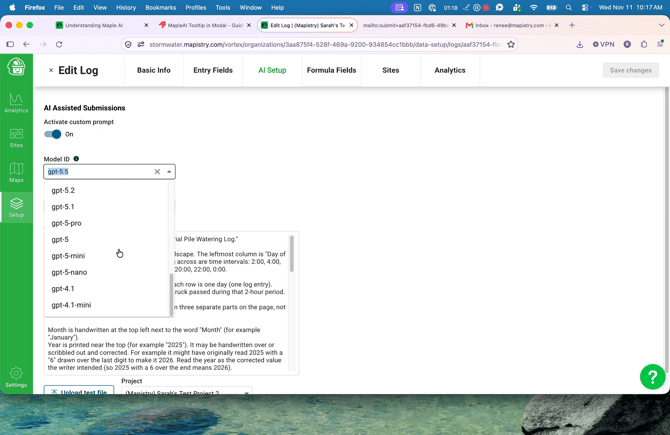
Model ID sets which AI model reads your documents. You can choose from the latest OpenAI models or one of three Anthropic Claude models. If you're not sure, keep the model already selected and change it only if a better prompt doesn't fix the problem.
- Claude models only work on logs with 12 or fewer fields. On a larger log, choose an OpenAI model.
- To compare models, test the same sample file after each change.
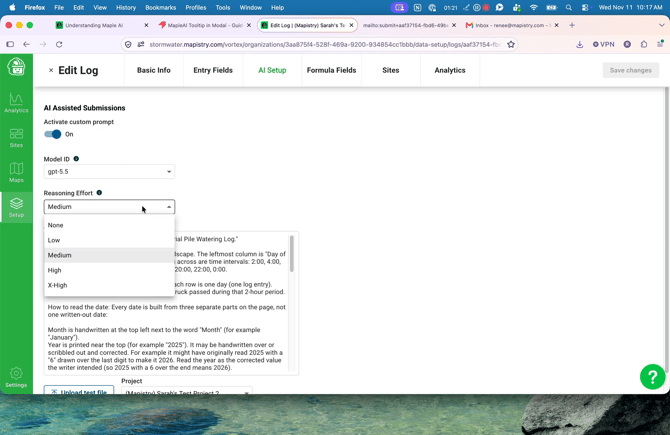
Reasoning Effort sets how much work the model puts into each document. Medium is a good starting point. Try High or X-High for crowded or hard-to-read pages; lower settings suit simple, clean documents.
Write a Maple AI prompt
Your prompt is a set of reusable instructions that tells Maple AI how to turn your document into log entries. Write it once for the log, the way you'd brief a new team member who has never seen the paper form.
- List the output columns. Give your log's fields in the exact order and spelling they appear in Mapistry. Log Date always comes first.
- Set the date format. Ask for dates as YYYY/MM/DD, or YYYY/MM/DD HH:MM:SS when there's a time. This the date format that the "Log Date" (a required field for all logs) accepts.
- Explain how to read the page. Describe the layout: whether it's portrait or landscape, what each column means, and where each part of the date is written. For example, the month may be handwritten at the top while the day is printed in the first column.
- Say what counts as one entry. For example, "one row per date in the left-most column" or "one row per day of the month, even if the day is blank."
- Tell it how to handle blanks. Ask Maple AI to leave a field empty (not zero) when nothing is written, and not to copy values down from the row above.
- Tell it how to handle hard-to-read writing. Ask it to give its best guess and add "[unclear]", or write "[illegible]", rather than guessing silently or skipping.
- Point out where notes hide. Handwritten notes often sit in margins, between lines or at an angle. Tell Maple AI which entry those notes belong to, usually the nearest date above.
- Cover the special cases on your form. Examples:
- Crossed-out entries: keep them but mark them "[STRUCK OUT]", or treat a voided row as blank.
- Corrected values: a year written over, or a printed column label overridden by hand. Say to use the corrected value.
- Checkmarks and X's: define what counts as a mark (any X, check, initials or scribble) and what doesn't (an empty box).
- Dates that don't exist: skip rows such as April 31.
- Keep the order. Ask for entries in the order they appear on the page, flagging out-of-order or duplicate dates instead of re-sorting them.
- Add a sanity check, not a rule. If entries usually follow a pattern, such as 4 to 5 marks between 6:00 and 14:00, describe it as guidance only. Make clear that what's on the page always wins.
Tips
- Be specific about your form. A prompt that names your actual columns and quirks works better than general instructions.
- Tell Maple AI not to infer or invent values. Each field should come only from what's visible.
- When a result is wrong, add one rule that addresses that problem, then test again.
This prompt is for a monthly water truck log, a grid with one row per day and a checkbox for each 2-hour period. Adapt the columns and rules to your own form.
Task: Extract data from the "Road and Material Pile Watering Log."

How to read the page: Read it in landscape. The left-most column is
"Day of month" (1-31). The columns across are 2-hour periods:
2:00, 4:00, 6:00 ... 22:00, 0:00.

Dates: The month is handwritten at the top left next to "Month".
The year is printed near the top and may be corrected by hand; use
the corrected year. The day is the typed number in the first column.
Format each date as YYYY/MM/DD.

Rules:
- One row per day, even if the day is blank. Skip dates that don't
  exist (for example April 31).
- Keep each mark on its own day. Don't shift marks into the row
  above or below.
- A time column is True if it has any mark (X, check, initials,
  scribble, any ink color). It is False if it's empty.
- If a whole row is crossed out, mark every time column False.
- Don't infer marks. Judge each cell only on what is visible.
- Guidance only: days with marks usually have 4-5 marks between
  6:00 and 14:00. What's on the page always wins.
- Put any other writing in the row (e.g. "Rain", "Closed") in Notes.

Output: CSV with this header, one row per day:
Log Date,2:00,4:00,6:00,8:00,10:00,12:00,14:00,16:00,18:00,20:00,22:00,0:00,Notes
- Use Upload test file on the AI Setup tab, or upload a sample document to the log after saving.
- Check the entries in the review modal and the entry summary against the paper copy.
- If something is wrong, add a rule for that problem to your prompt, save, and upload the sample again.
- Once the results look right, your team can keep submitting by upload or email as usual.
You can always correct individual entries in the review modal before saving them. Changing the prompt doesn't change entries that were already created.
Related articles
Questions? Contact your Customer Success Manager or help@mapistry.com.