
Form Inspection Date
The “Form Inspection Date” is a date field from the inspection form that represents the date the inspection was performed.
The value entered into the “Form Inspection Date” assigned date field will be the “Inspection Date” that is used in analytics to determine the inspection’s completion status. For example, if a monthly form has a due date of 10/31/2025 and the “Form Inspection Date” date field value is 10/25/2025, the status will be “Completed on Time”. If the “Form Inspection Date” date field value is 11/1/2025, the status will be “Completed Late.”
The “form inspection date” is not a time stamp of the time a user actually saved the form in Mapistry. This allows users who prefer to complete an inspection on paper or outside of Mapistry to fill out their Mapistry form on a date later than the “form inspection date.”
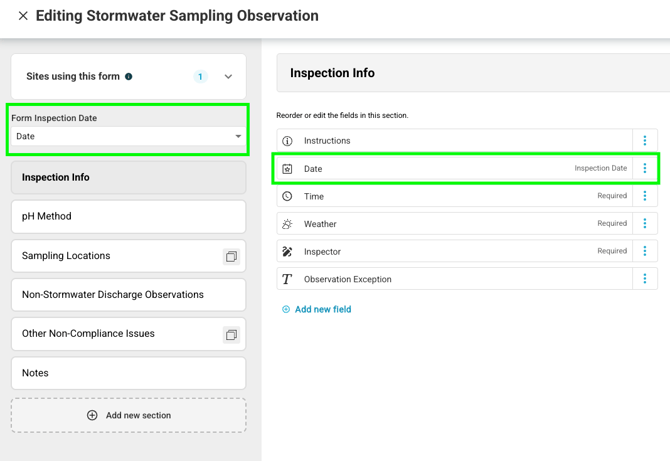
Requirements:
- Field is a “Date” field
- In a non-repeatable section
- Only one date field can be the “Form Inspection Date”
- You must assign a “Form Inspection Date” to every inspection form
- Field is required
- Field must always be shown. In other words, it cannot be conditionally hidden based on the response to another field.
Recommendations:
- Choose “default to current date” on the date field to automatically populate it with today’s date when the inspection is being completed (so the user doesn’t have to type it in).
Related Information:
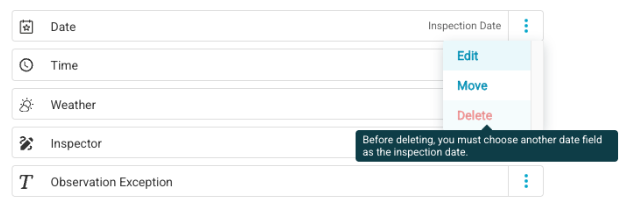
- You cannot delete the inspection date field. If you want to delete it, you need to first choose another date field to be the inspection date.
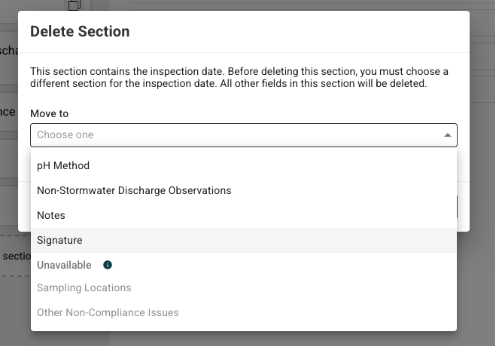
- If you try to delete a section that contains the inspection date or make a section that contains the inspection date into a repeatable section, you will be prompted to "move" the inspection date first.
- Choosing a date field as the inspection date makes the field required (this happens in the background).
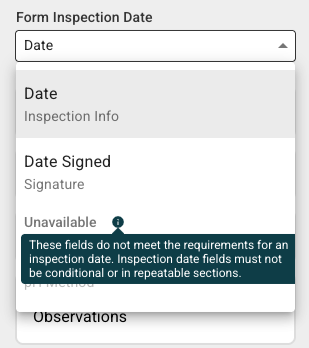
- Date fields that are not able to be selected as the “Inspection Date” (becuase they are in a repeatable section or are conditioned on other fields) will still appear in the dropdown for “Form Inspection Date” but will not be clickable and designated as “Unavailable.”
How-To:
Assign the “Form Inspection Date”
- Within the “Configure Form” page within the form you are editing, find the “Form Inspection Date” at the top of the left panel
- From the dropdown, pick the Date field from the options available that should correspond to the Inspection Date

- Click “Save Changes” in the upper right
- To change the field the “Form Inspection Date” is assigned to - click on the “Form Inspection Date” dropdown and, from the other date fields available, pick the field you want to change the “Inspection Date” to. Then, click “Save Changes” in the upper right.
- If you don’t see an option available, create the section/new date field first (following the requirements above). Then, assign it as the inspection date
Related information: https://www.mapistry.com/knowledge-center/understanding-the-form-builder