
Read more about the Form Builder capabilities in this Understanding the Form Builder guide
Intro to Forms:
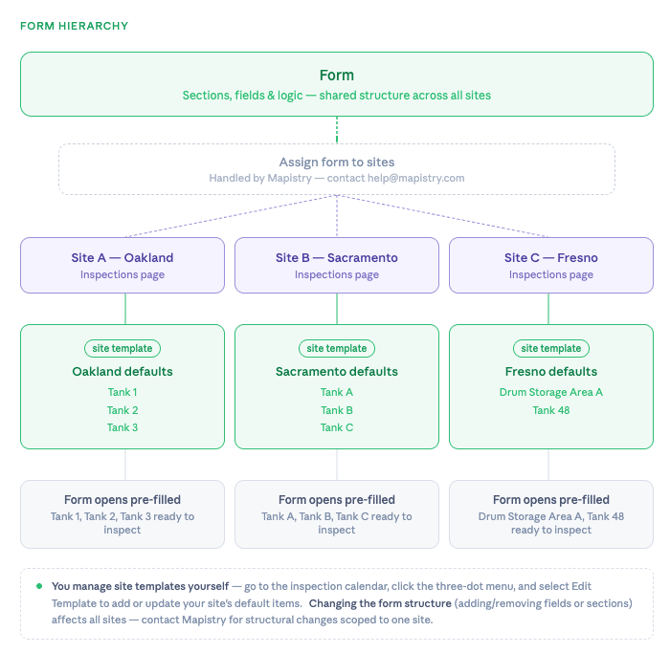
When you have multiple sites that use the same type of inspection (ex: same overall format & questions), you don't need to build a separate form for each one. Mapistry uses a two-layer system: a shared base form structure that defines the structure (ex: SPCC SP001), and a site template that pre-fills site-specific content on top of it (ex: tank names for that facility, AST 10,000-gal and AST 5,000-gal).
How the two layers work:
↓
Layer 2: Site template (product guide) - via a Site's Inspection Page -> "Site Template"
The pre-filled content for a specific site — for example, the list of tanks, BMPs, or equipment items that should appear in a repeatable section by default. Each site gets its own site template. Changes here only affect that one site.
Practical result: Site A's "Tank Inspection" form opens pre-filled with Tank 1, Tank 2, Tank 3. Site B's identical form opens pre-filled with Boiler Unit A, Boiler Unit B — same structure, different defaults.
Who can edit forms?
Create/Edit Forms
All organization admins can build new and edit existing forms.
Site admins can also edit forms - only if the form being edited is used exclusively at sites they are site admins for. If they try to edit a form that is used elsewhere, they will get an error message telling them they need a site specific copy if they want to make edits, and they should reach out to support.
Create/Edit Site Templates:
Site Admin roles can create and edit site templates
Basic Form Building
Follow along with a product demo video:
- Create your form in Setup → Forms
Go to Setup → Forms and click to create a new form. You have two ways to build it:
- Upload a PDF of your existing paper form and let the AI generate a structure from it.
- Describe it in plain English — no file needed. Type out your sections and fields and the AI will build the structure.
- Combination of A & B
- Create manually from scratch
- Understand the two building blocks: sections and fields
- Every form is made of sections (grouped topics) that contain fields (individual questions). The most important design choice for each section is:
-
Single Section Repeatable Section Completed once per inspection. Use for: date, time, inspector, weather, signature. Completed once per item. Use for: inspecting multiple tanks, generators, control measures, etc.
- Set your Inspection Date field in the first single section - this is required (product guide)
- Pick the right field type for each question
- Most questions fall into a handful of types: Date, Time, Boolean (yes/no), Single select, Multi select, Text / Text area, Number, Photo, Tasks, User / Multi user, Signature, Location.
- Boolean vs. Single Select: Use Boolean (Yes/No) only when N/A never applies. If someone might legitimately skip a question, use Single Select with options: Yes, No, N/A.
- Location fields: Within the Form Builder, you can add a "Location" field. Location fields act as site-specific single or multi-select drop-down fields when completing a form, even if sites use the same original form. Only features on an individual site's map for layers tagged with the same tag as selected for the Location field will display as select options for that particular site. Common examples include Tank locations or stormwater outfalls. See more on Location fields here
- For Repeatable sections - set the "Subsection Title Field"(s)
- Every repeatable section should have at least one Subsection Title Field — the field (or fields) whose value is used to label each instance of the section (ex: each tank, each outfall, each location, each item #). It should uniquely identify the item in the subsection of the repeatable section that is being inspected. It's what inspectors see when they look at the list of instances they need to fill out, and what appears as the header for each instance in the PDF. In the screenshot below, "Industrial Process or Activity"is the "Subsection Title Field.
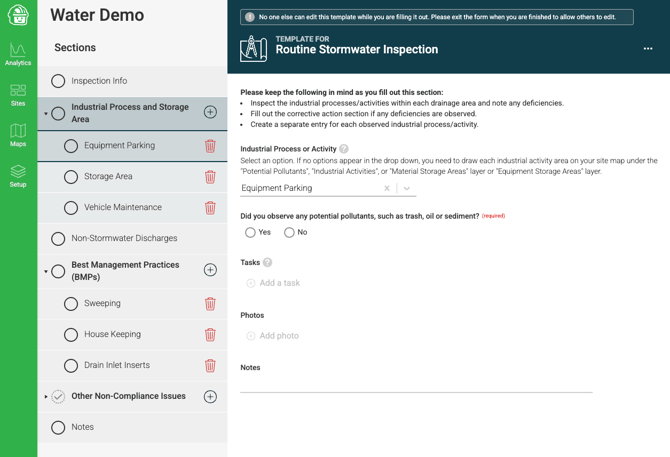
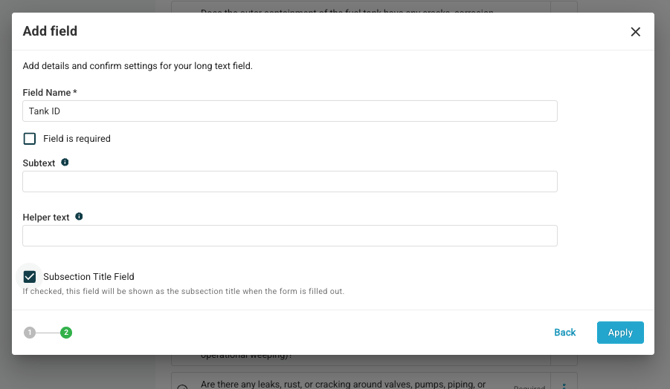
- To assign a field as a "Subsection Title Field" within the "Configure Form" page, find the field(s) you want to assign, click on the 3 dots to the right of it, and check the box for "Subsection Title"
- Every repeatable section should have at least one Subsection Title Field — the field (or fields) whose value is used to label each instance of the section (ex: each tank, each outfall, each location, each item #). It should uniquely identify the item in the subsection of the repeatable section that is being inspected. It's what inspectors see when they look at the list of instances they need to fill out, and what appears as the header for each instance in the PDF. In the screenshot below, "Industrial Process or Activity"is the "Subsection Title Field.
- Use conditional logic to keep questions applicable
- Fields can be shown or hidden based on another field's answer — within the same section. This keeps forms from feeling overwhelming.
- Classic example: "Were there any issues?" [Yes/No] → If Yes, show "Describe the issue" + Photos + Tasks. If No, those fields stay hidden.
- Add subtext to fields that need it
- Subtext appears below the field label and shows on desktop and mobile. Use it for Time (Use the 24-hour clock, e.g. 0800), Number (Type in a number), and Select fields (Select one from the options provided or enter your own; or Choose from the options provided - select all that apply).
- Don't rely on Help Text alone - it's desktop-only and invisible in PDFs.
- Add a Tasks field anywhere deficiencies may be found
- The Tasks field lets inspectors create and assign corrective actions directly from the form — no need to go to a separate screen. Put one in every section where something might be wrong.
- Add the form to each site. Use site-level "Site Template" (product guide) to make the form site-specific
Examples:
Common Anatomy of a Well-Built Form
Every inspection is different, and Mapistry's form builder is flexible enough to handle a wide range of structures and requirements. That said, the pattern below applies to the majority of environmental inspection forms - it's a reliable starting point even if your final form looks a bit different.
| Section # | Section Name | Section Type | Repeatable Section Identifier (Subsection Title Field) | Types of Fields |
| 1 | Inspection Info | Single | N/A | Inspection Date*, Time, Weather, Inspector |
| 2 | Inspection Items | Repeatable | "Inspection Item" field |
Inspection Item, checklist questions, Comments, photos, tasks |
| 3 | Certification | Single | N/A | Certification text (explanation area), Signature, Date |
Specific Example: Monthly SPCC Inspection
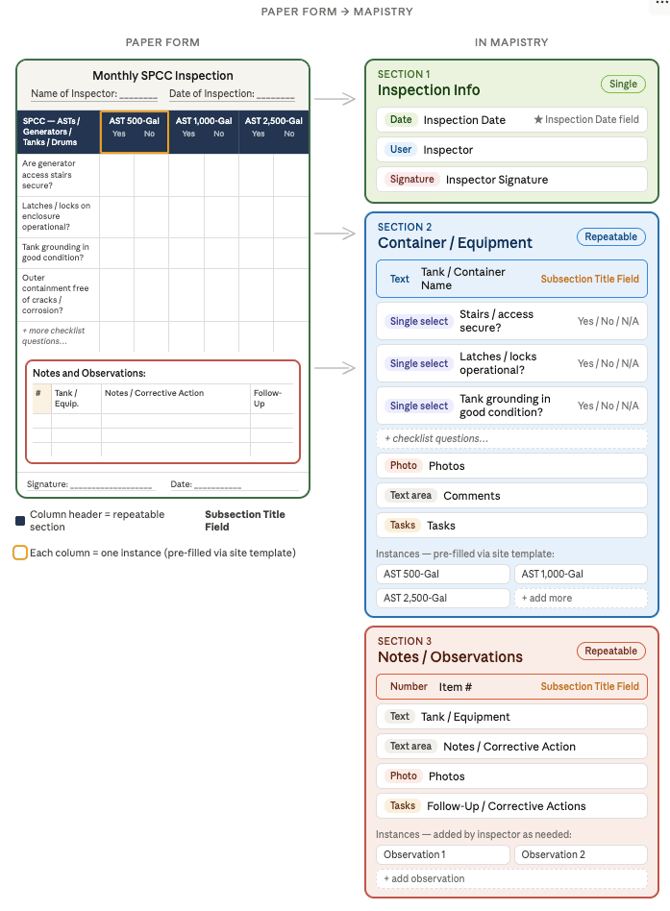
Here's an example of a form - starting from the original paper/PDF version:
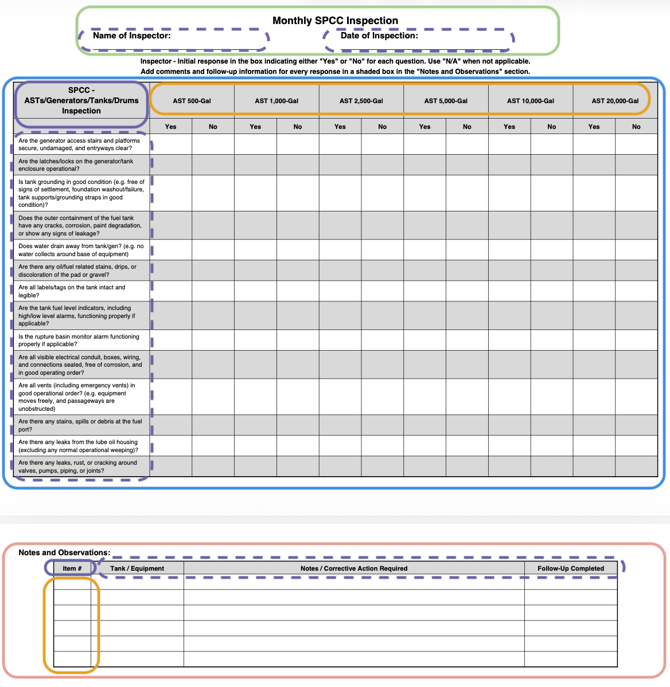
This is a potential mapping from the original form to Mapistry form sections:
| Section # | Section Name | Section Type | Repeatable Section Identifier (Subsection Title Field) | Fields |
| 1 | Inspection Info | Single | N/A | Inspection Date*, Time, Weather, Inspector |
| 2 | SPCC - ASTs/Generators/Tanks/Drums Inspection |
Repeatable | Tank/Container Name/ID |
Tank/Container Name/ID, Checklist Questions (container/ containment/ piping questions), comments, photos, tasks |
| 3 | Notes & Observations | Repeatable | Item #; Tank / Equipment |
Item #; Tank / Equipment, Notes / Corrective Action Required, Follow-Up Completed |
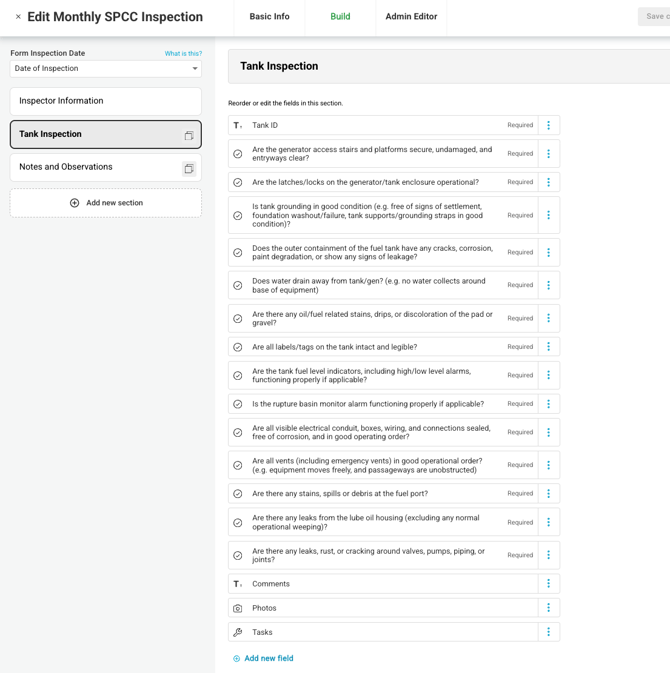
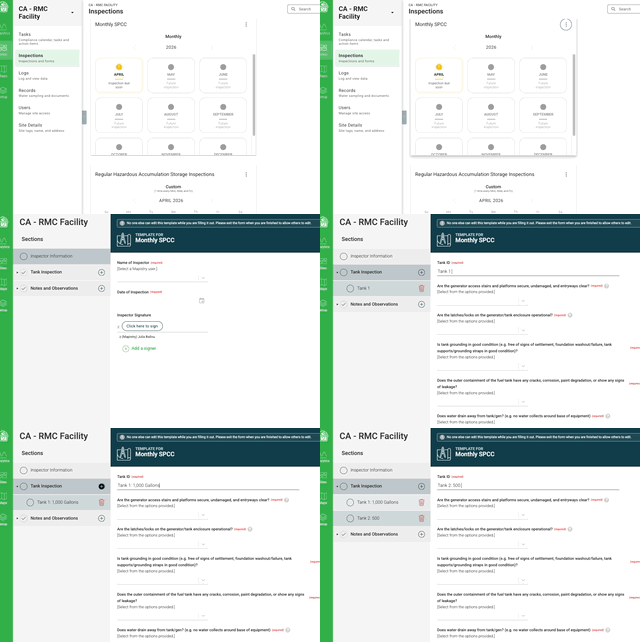
What it looks like in Mapistry:
In "Configure Form"
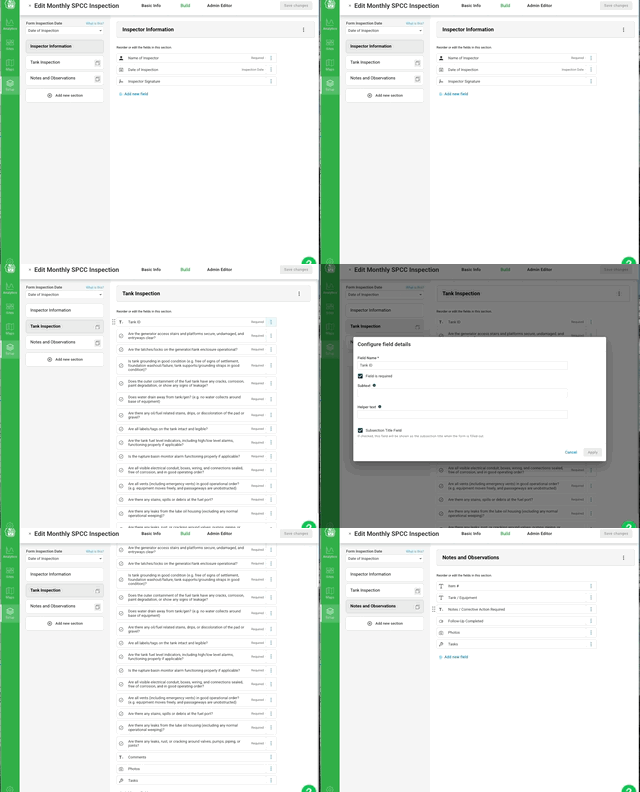
In Site Template:
Other Common Examples:
SPCC Routine Inspection Example
| Section # | Section Name | Section Type | Repeatable Section Identifier (Subsection Title Field) | Example Fields |
| 1 | Inspection Info | Single | N/A | Inspection Date*, Time, Weather, Inspector |
| 2 | Container/ Equipment Inspection | Repeatable | Tank/Container Name/ID |
Tank/Container Name/ID, Checklist Questions (container/ containment/ piping questions), comments, photos, tasks |
| 3 | Notes | Single | N/A | Notes |
Stormwater Routine Facility Inspection Example
| Section # | Section Name | Section Type | Repeatable Section Identifier (Subsection Title Field) | Example Fields |
| 1 | Inspection Info | Single | N/A | Inspection Date*, Time, Weather, Inspector |
| 2 | Industrial Activity Areas | Repeatable | Industrial Activity/Potential Pollutant |
Industrial Activity/Potential Pollutant, checklist questions (ex: exposed to stormwater? etc), Comments, Photos, Tasks |
| 3 | Control Measures/ BMPs | Repeatable | Control Measure/BMP |
Control Measure/BMP, checklist questions (ex: sufficiently implemented? etc), Comments, Photos, Tasks |
| 4 | Certification | Single | N/A | signature, date |
Get the most out of the Mapistry form - Common Scenarios & Form Building Tips:
Use the AI Generated Form (and add prompts) to start with something close
The AI form builder works best when you give it something concrete to start with. You can upload a PDF of your existing paper form, describe the form in plain English, or combine both. Even a rough description gets you 80% of the way there and you can refine from the Form Builder once it's generated.
Tips for better AI results:
- Be explicit about which sections should be repeatable. Example: "Section 2 (repeatable): Tank — Tank Name, Any leaks? (yes/no), Comments, Photos"
- Name the field types you want where it matters — the AI will make reasonable guesses, but calling out "Boolean" or "Single Select: Yes, No, N/A" gets you closer on the first pass
- After generation, always review before saving — check that a Date field exists in a single section so you can assign the Inspection Date
- You can re-run the AI on the same PDF with a different prompt if the first result isn't quite right (ex: if the first time the AI produces a single section that should be repeatable, add that instruction to the prompt and run it again)
Common Ways to Use Repeatable Sections
| Scenario | Repeatable section name | Subsection Title Field (names each instance aka Subsection Headers) | Example fields |
| Multiple tanks or containers | Container / Equipment | Tank/Container Name or ID | Tank/Container Name or ID, checklist questions, comments, photos, tasks |
| Stormwater BMPs or control measures | Control Measures / BMPs | BMP Name | BMP Name, checklist questions, comments, photos, tasks |
| Individual emission points (Method 22) | Emission Observations | Equipment ID | Equipment ID, Emission Observation field, comments, photos, tasks |
| Different inspection areas at a large site | Inspection Area | Area Name | Area Name, checklist questions, comments, photos, tasks |
| Discharge locations / Outfalls | Discharge Locations | Location Name | Location Name, checklist questions, comments, photos, tasks |
| Custom question-and-response list | Questions | Question (Text field) | Question (Text), Response (Boolean or Single Select: Yes / No / N/A), Comments, Photos, Tasks |
A few rules of thumb:
- The display field is what labels each instance in the form and in the PDF — always set it to whatever uniquely identifies the item (tank name, BMP name, equipment ID)
- If you're inspecting the same checklist questions for each item, that's a repeatable section
- If a section has only 1–2 items that will never change, a single section with two sets of fields can work, but repeatable is cleaner and more future-proof
- Always set your "Subsection Title Field" (s) to uniquely identify which item is being inspected (see more below)
The custom Question-and-response pattern is a flexible catch-all that works well when:
- You have a list of inspection criteria that doesn't fit neatly into a named asset category (tanks, BMPs, etc.)
- Your checklist questions vary site-to-site and you want to manage them via the site template rather than rebuilding the form
- You're translating a paper checklist directly into Mapistry and want to preserve the question-by-question format
Repeatable Sections in "Configure Form"
.png?width=670&height=372&name=Forms%20-%20Repeatable%20Sections%20(Configure%20Form).png)
Repeatable Sections in "Site Template"
Yes/No (Boolean) vs Single-Select Fields
| Boolean (Yes / No) | Single Select | |
| Use when | Both answers always apply - there's no "not applicable" situation | N/A is a realistic answer, or you need more than two options |
| Example | "Did you complete the walk-through today?" | "Is Tank Piping in good condition?" Yes / No / N/A |
| Conditional logic | Works well as a trigger — show follow-up fields on "Yes" or "No" | Also works as a trigger, but condition must match a specific option value |
A useful convention: add an asterisk to the "deficiency" answer in your select options to flag items needing attention, especially when the "deficient" response can change depending on the question. Example: "Any leaks observed? Yes* / No / N/A" — then add a note that * indicates non-conformance requiring corrective action. This makes deficiencies easy to spot in analytics and PDF exports.
Setting the Subsection Title Field(s) for Repeatable Sections
Every repeatable section should have at least one Subsection Title Field — the field (or fields) whose value is used to label each instance of the section (ex: each tank, each outfall, each location, each item #). It should uniquely identify the item in the subsection of the repeatable section that is being inspected. It's what inspectors see when they look at the list of instances they need to fill out, and what appears as the header for each instance in the PDF.
Getting this right makes a big difference in usability. A well-chosen Subsection Title Field means inspectors immediately know which tank, BMP, or piece of equipment they're looking at. A poorly chosen one (or a missing one) means every instance looks identical until you open it.
How to set it
To assign a field as a "Subsection Title Field" within the "Configure Form" page, find the field(s) you want to assign, click on the 3 dots to the right of it, and check the box for "Subsection Title"
Tips for choosing the right field
The best Subsection Title Field is whatever makes each instance unambiguously distinct at a glance:
- For equipment or asset sections, use a Text field where the inspector enters (or the site template pre-fills) the asset name or ID — e.g. "Tank / Container Name," "BMP Name," "Equipment ID"
- For question-and-response sections, use the Question text field — so each instance shows the question text as its label
- For observation or notes sections, use a Number field (Item #) — so instances are labeled "1," "2," "3" in sequence
- Avoid using a Boolean or Single Select as the Subsection Title Field (unless they help uniquely identify the subsection) — if multiple instances have the same answer (e.g. all "Yes"), the instances become indistinguishable
- You can set more than one field as the "Subsection Title Field" - when more than one field is selected as the "Subsection Title Field", the values will display like [Field 1 value] - [Field 2 value]
How it shows up in the site template
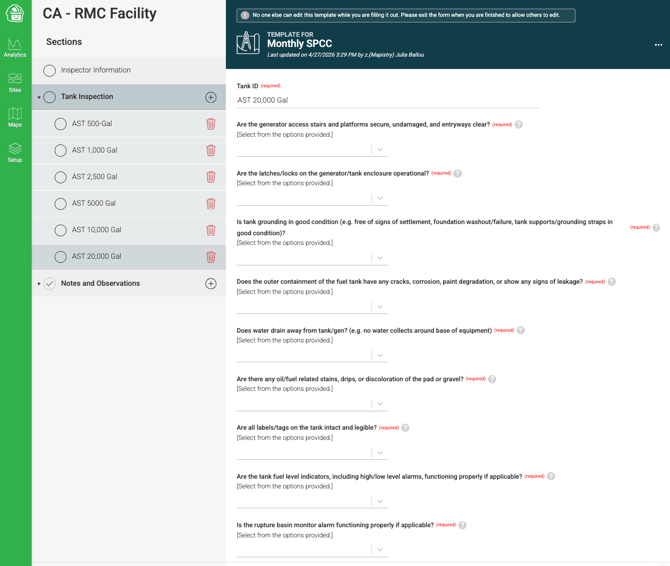
When you pre-fill a repeatable section via the site template (Edit Template), the value you enter into the Subsection Title Field for each instance is what becomes the label — so "AST 500-Gal," "Tank A," "Drum Storage Area A" are all coming from that field. This is why it's worth naming your site template instances clearly and consistently: those names travel through to the form, the inspector's view, and the PDF export.
In the screenshot below, the "Industrial Process or Activity" field has been set as the Subsection Title Field, making the value for each field display as each subsection's header.
Make Forms Site-Specific with Site Templates
Once your form is assigned to multiple sites, use site templates(product guide) to pre-fill the site-specific content — so inspectors open the form and their tanks, BMPs, or equipment are already listed, ready to fill out.
How to set it up:
- Go to the site's Inspections page
- Click the three-dot menu on the form and select Edit Template
- In any repeatable section, add the items specific to that site (e.g. Tank 1, Tank 2, Tank 3)
- Save — those items will now pre-populate every new submission at that site
Key things to know:
- Each site has its own independent site template — changes at one site don't affect others
- You can update a site template anytime as your site changes (new tank added, BMP removed, etc.)
- The site template sets the starting point — inspectors can still add or remove instances when completing the form
- Changing the form's structure (adding/removing fields or sections) is separate from the site template and affects all sites using that form
Pre-filling default responses for questions that don't apply
Beyond pre-filling item names, site templates can also pre-set the response to a question — which is especially useful when you know certain checklist items will never apply to a specific site or asset type.
For example: a form might include a "Is Tank piping in good condition?" question that's relevant for some tanks but meaningless for drum storage areas. Rather than leaving inspectors to manually mark it N/A every time, you can set the default response to N/A in the site template for any "Drum Storage Area" instance. The field arrives pre-answered, the inspector doesn't have to think about it, and the record stays clean.
This pattern works well when:
- One form is shared across sites or asset types that have slightly different applicable criteria
- Certain questions are structurally required on the form but only relevant for a subset of items
- You want to reduce inspector decision fatigue and minimize the chance of accidental blanks on non-applicable fields
Make Site-Specific Single/Multi Select Fields with Map-Linked "Location" Fields
Within the Form Builder, you can add a "Location" field. Location fields act as site-specific single or multi-select drop-down fields when completing a form, even if sites use the same original form. Only features on an individual site's map for layers tagged with the same tag as selected for the Location field will display as select options for that particular site. Common examples include Tank locations or stormwater outfalls.
Location fields are another common Subsection Title Field type for Repeatable sections to identify what is being inspected
Read more about the setup here