
In each inspection, you can assign it to a specific person or group of assignees.
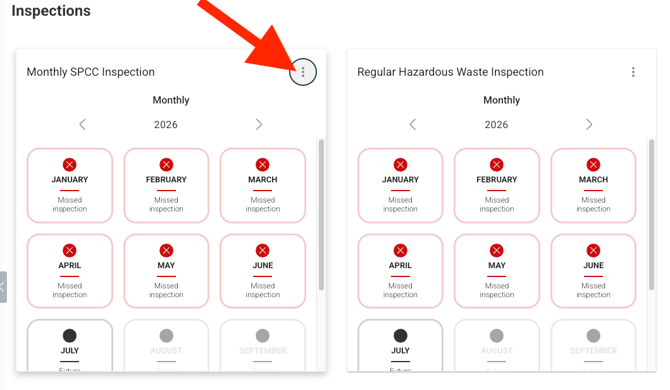
1. Navigate to your Site Dashboard and the Inspections module. Click on the three dots in the upper right of the inspection. In this example we will look at the Monthly SPCC Inspection.
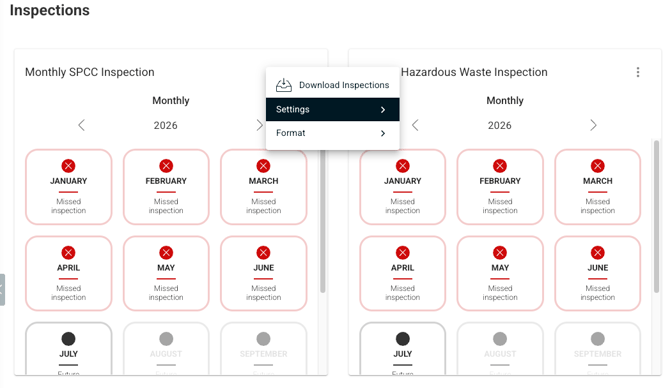
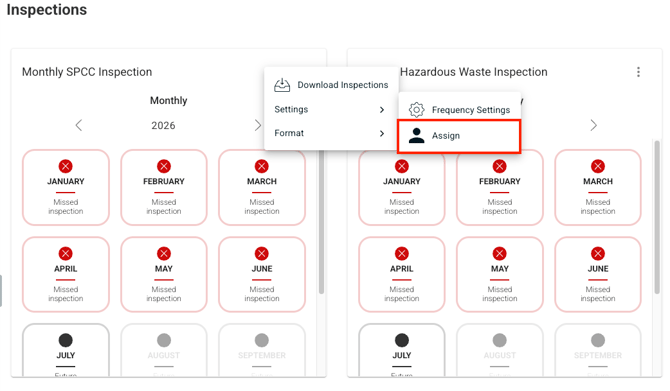
2. A module will appear. Select Settings. In the next module that opens, select Assign.
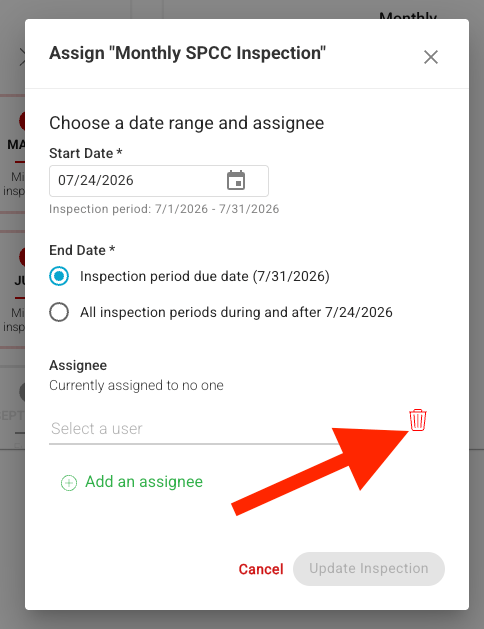
3. A pop-up will appear to chose a Start Date, End Date and Assignee. Note, you can have multiple Assignees.
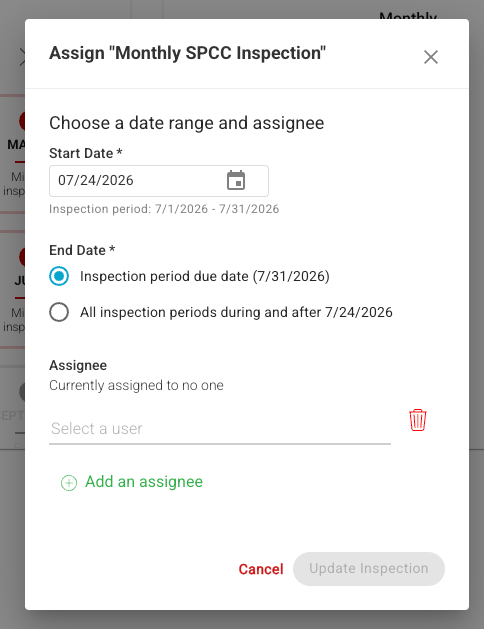
4. To assign, select a user from the dropdown list or type the user's name on the line.
💡Note: Site Contributors and all Admins can assign and be assigned any inspection. Site Viewers and Site Maintenance users cannot be assigned an inspection, or make inspection assignments. For more details on site roles, see this guide.
6. That user will receive an email notifying them that they have been assigned an inspection.
Removing Assignees from Inspection Forms
You can also remove users as assignees from inspection forms.
1. Follow the first three steps from above.
2. Select the trash can next to where you can pick assignees. Then click save. If you go back into the inspection, you will see "Currently assigned to no one".
End of Article
Support
If you have any questions or need further assistance, please e-mail help@mapistry.com.